
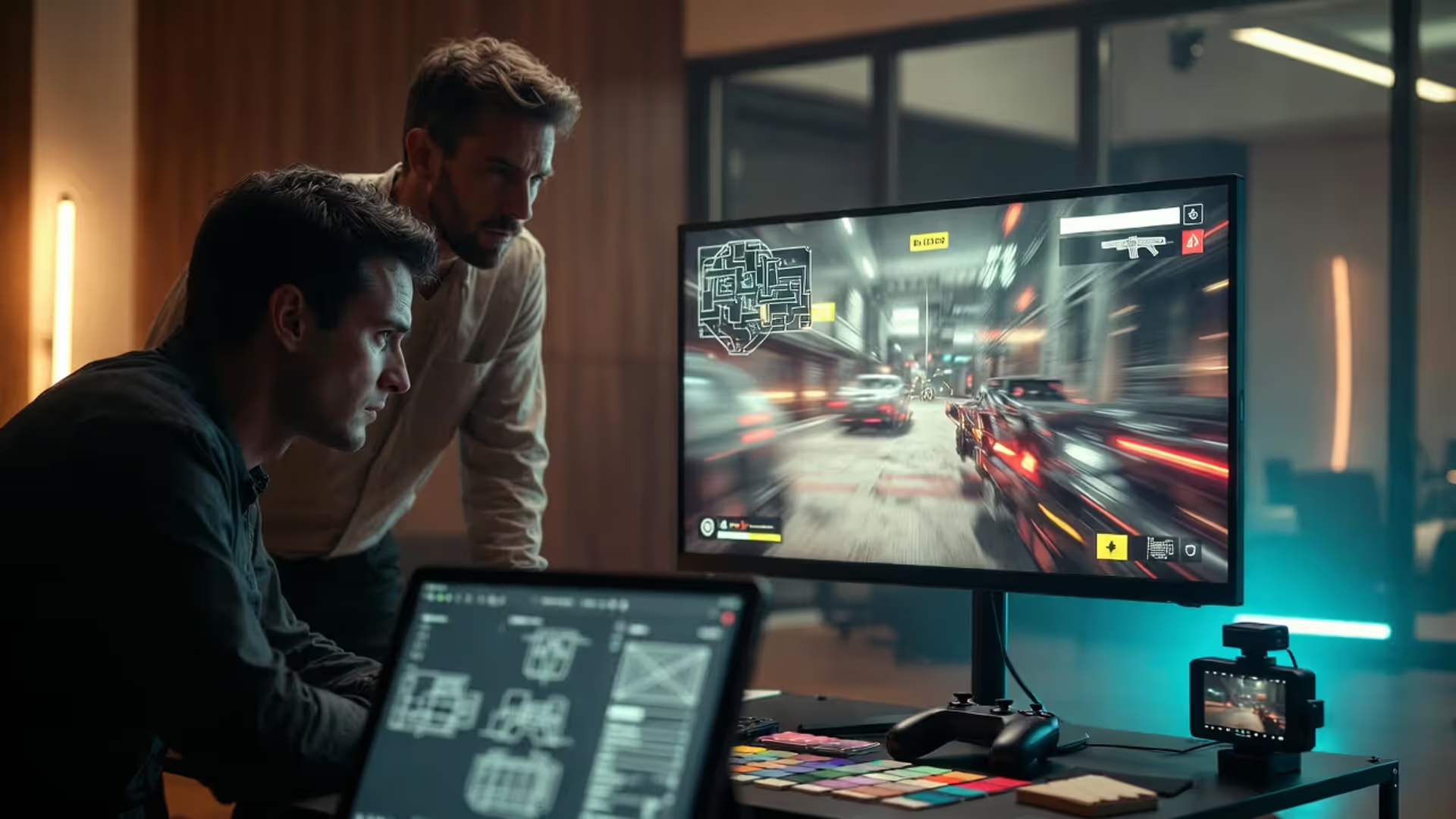
UI decisions that change gameplay
Game UI UX Design Guide

Content
When a player dies in Dark Souls because they couldn't read their stamina bar during a boss fight, that's a UI problem. When someone uninstalls a mobile game after three minutes because they can't figure out how to access their inventory, that's a UX failure. The interface sits between the player's intent and their ability to execute, making it one of the most critical—yet frequently underestimated—aspects of game development.
Game UI UX determines whether players feel empowered or frustrated, immersed or distracted. A health bar positioned two pixels too far from the action can mean the difference between flow state and constant eye strain. Button prompts that appear a half-second too late transform challenging gameplay into unfair punishment.
What Makes Game UI UX Different from Traditional Digital Design
Traditional web or app design operates in a fundamentally different context than game interfaces. When someone uses banking software, they're focused on completing a transaction. The interface should be invisible, efficient, and predictable. Games flip this relationship on its head.
Game UI UX must serve two masters simultaneously: delivering critical information while preserving the emotional state that makes play enjoyable. A player navigating a horror game needs to check their ammunition count, but displaying that information too prominently destroys the tension that makes the experience work. An MMO player requires dozens of data points about cooldowns, buffs, and party status, but presenting all of it creates visual chaos.
The timing dimension adds another layer of complexity. Unlike a website where users control their pace entirely, games often demand split-second decisions. The interface must communicate instantly—there's no time for the player to hunt for information. When a fighting game displays frame data or when a battle royale shows the shrinking safe zone, that information needs to register in the player's peripheral vision without conscious effort.
Author: Brandon Hayes;
Source: quantumcatanimation.com
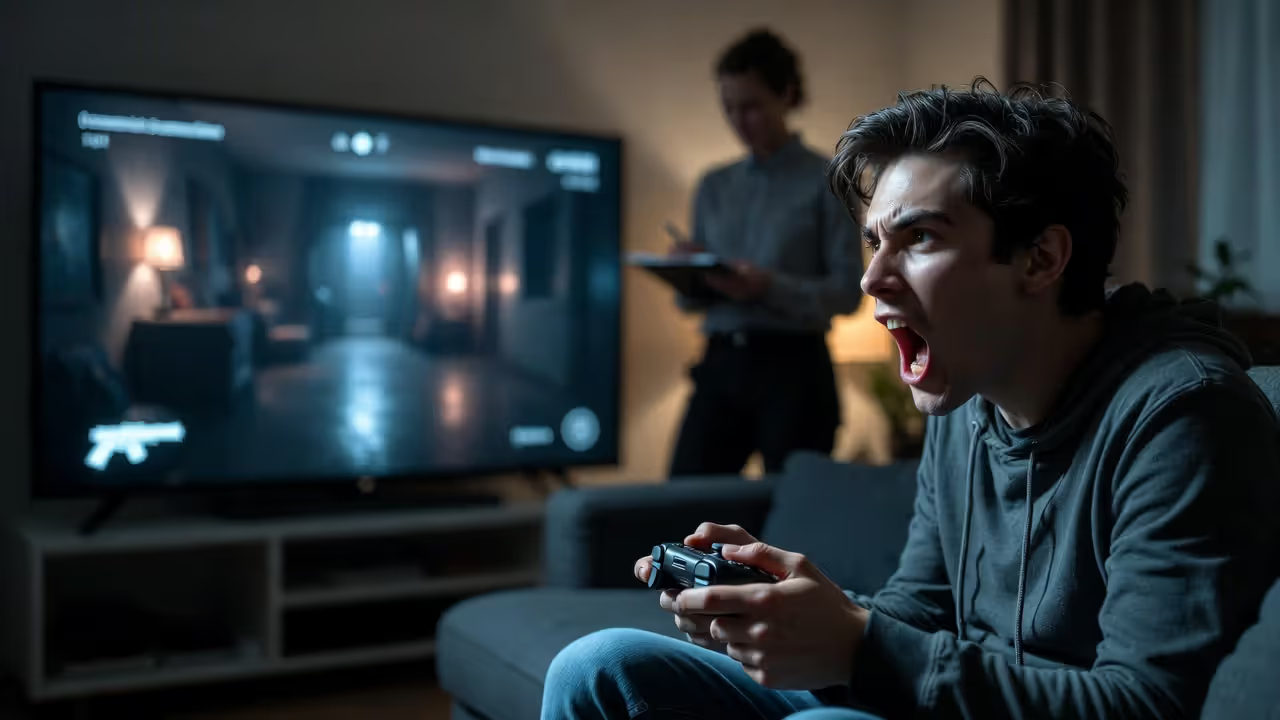
Players also experience heightened emotional states during gameplay. Adrenaline spikes during intense moments can cause tunnel vision. Frustration after repeated failures makes people less patient with unclear interfaces. Joy during a winning streak makes players more forgiving of minor UI quirks. Effective game UI UX accounts for these psychological shifts, adapting feedback intensity and information hierarchy to match the player's state.
Context switching presents another unique challenge. Players jump between wildly different mental modes—from inventory management to real-time combat to story sequences—sometimes within seconds. Each mode requires different information and interaction patterns, yet the transitions must feel seamless. Jarring shifts in interface logic break immersion and force players to relearn systems mid-session.
The best game UI is the one you never notice. It should feel like a natural extension of the game world, not a layer sitting on top of it. When players start talking about your UI, something has gone wrong—unless they're praising how it disappeared.
— Jason VandenBerghe, Creative Director at Ubisoft
Core Components of Effective Interface Design Gaming
HUD Elements That Enhance Rather Than Distract
The heads-up display walks a tightrope between utility and obstruction. Every pixel dedicated to UI is a pixel stolen from the game world itself. The question isn't what information to show—it's what information players actually need moment-to-moment versus what they merely want available.
Health indicators exemplify this trade-off perfectly. Call of Duty pioneered the regenerating health system partly to eliminate constant health bar monitoring. The bloody screen edges communicate damage without requiring players to glance away from their crosshair. The Last of Us hides health entirely until the player takes damage, then displays it briefly before fading out. Both approaches prioritize screen real estate and player attention.
Resource management displays—ammunition, mana, stamina—work best when positioned near the interaction point. Third-person shooters often place ammo counts near the character model rather than in screen corners, reducing eye travel distance. Dead Space took this concept further by integrating health and stasis meters directly onto Isaac's suit, making the UI diegetic—part of the game world itself.
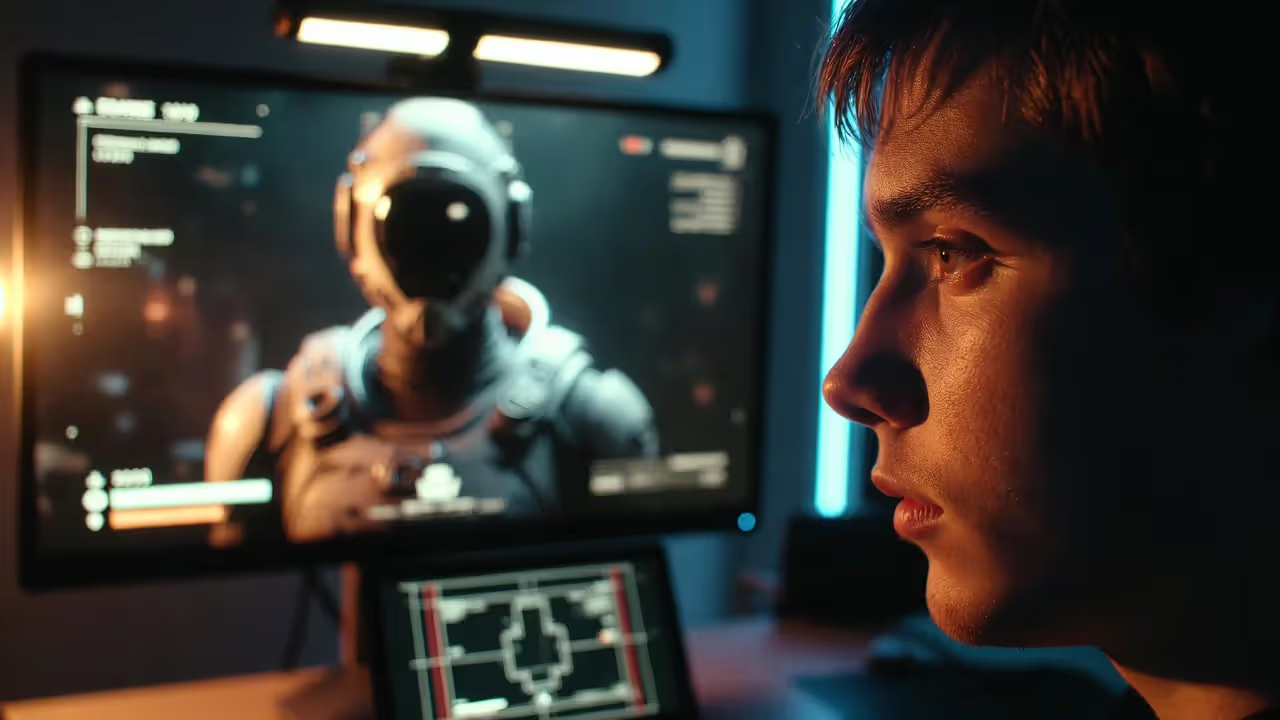
Minimaps and radar systems demonstrate how genre conventions shape interface design gaming. Racing games position minimaps to show upcoming turns. Battle royales use them for zone information and teammate locations. Stealth games display enemy sight cones. The same UI element serves completely different functions based on what information matters most for that gameplay loop.
Author: Brandon Hayes;
Source: quantumcatanimation.com
Notification systems require careful restraint. Achievement pop-ups during emotional story moments destroy pacing. Loot notifications that obscure combat information get players killed. The best implementations queue non-critical notifications for natural breaks or position them in low-priority screen areas. God of War (2018) displays most notifications near Kratos's hip, where players rarely need to look during combat.
Menu Systems and Navigation Flow
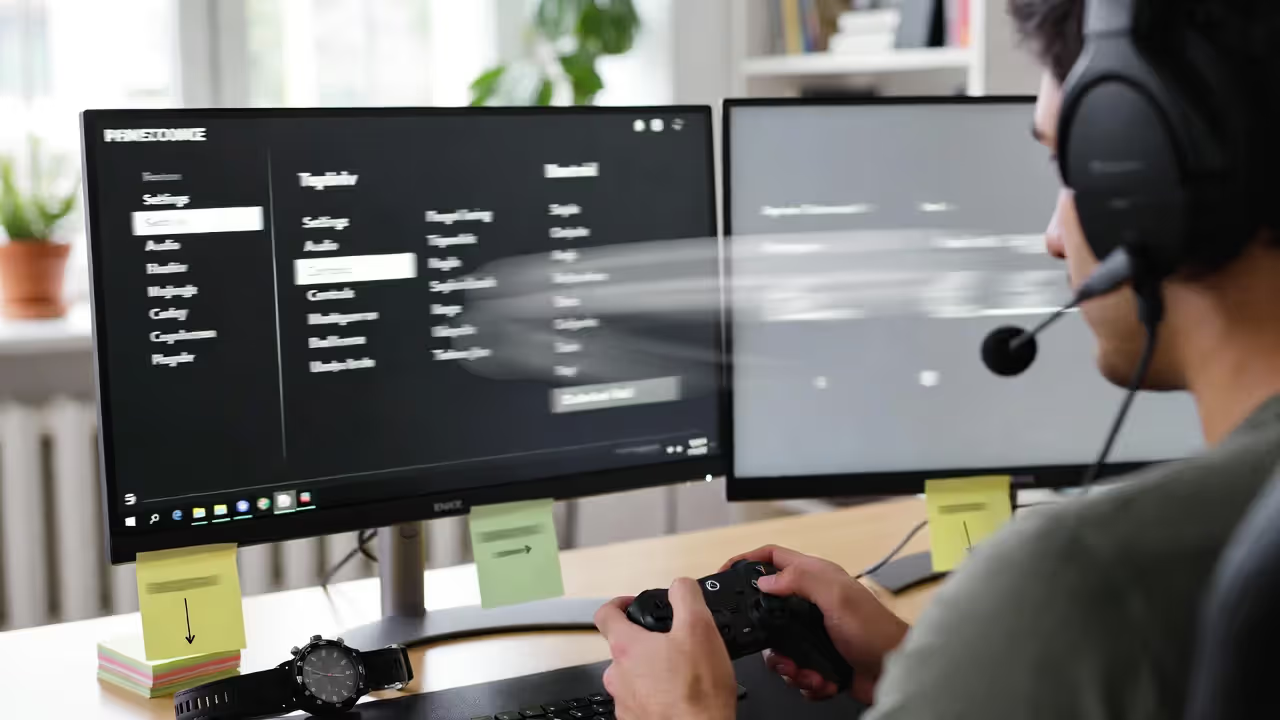
Pause menus reveal a game's information architecture. Players access them frequently, often under pressure, and expect to find what they need within two or three selections. Poor menu organization compounds frustration during already-stressful moments.
Logical grouping matters more than alphabetical sorting. Equipment menus should separate weapons, armor, and consumables even if that means "Sword" appears far from "Shield." Players think in categories, not alphabetized lists. The Witcher 3 learned this lesson through patches, eventually reorganizing its inventory system after player feedback about the difficulty of finding specific item types.
Muscle memory develops quickly for frequently-accessed functions. Placing "Save Game" in different menu positions across your game's various screens forces players to search every time. Consistency in button mapping and menu position creates automaticity—players navigate without conscious thought, reducing cognitive load.
Visual hierarchy guides the eye efficiently. The most important or frequently-used options should dominate visually through size, position, or contrast. Persona 5 exemplifies this principle with its bold, high-contrast menu design that makes navigation feel effortless despite the game's complexity.
Author: Brandon Hayes;
Source: quantumcatanimation.com
Breadcrumb trails and clear back-button logic prevent players from getting lost in nested menus. Nothing frustrates like drilling down four levels only to realize the option you wanted was in a completely different top-level category. Preview windows that show the effect of selections before committing reduce trial-and-error navigation.
Feedback Loops and Visual Confirmation
Every player action requires acknowledgment. Press a button and nothing happens? Players assume the input didn't register and press again, often triggering unintended double-actions. Immediate feedback—even something as subtle as a button highlight or sound effect—confirms the game received the input.
Damage feedback clarity prevents confusion during combat. When players take damage, they need to know immediately: How much? From which direction? How critical is it? Halo color-codes its shield feedback, with different alert states as protection depletes. Directional damage indicators—red flashes at screen edges pointing toward the threat—have become standard in shooters because they communicate essential information instantly.
Success states deserve celebration, but the intensity must match the achievement. Landing a regular hit might warrant a small number popup. A critical strike deserves more fanfare. Defeating a boss calls for screen-filling effects and triumphant audio. Mismatched feedback cheapens significant moments or makes routine actions feel exhausting.
Loading state communication prevents player anxiety. A frozen screen with no indication of progress makes people think the game crashed. Progress bars, animated icons, or gameplay tips during loads reassure players that something's happening. Splatoon turns loading into gameplay with its squid-jumping minigame.
Error messages need specificity. "Cannot do that" teaches nothing. "Insufficient mana" or "Target out of range" helps players understand what went wrong and how to correct it. Even better: prevent invalid actions from being selectable in the first place through smart UI state management.
7 Player Usability Design Mistakes That Break Immersion
1. Information overload on first launch
Tutorial screens that dump fifteen mechanics simultaneously guarantee players will retain none of them. Destiny 2 initially overwhelmed new players with systems explanations before they'd even fired a weapon. Effective onboarding introduces one concept at a time, ideally through gameplay rather than text dumps. Players learn by doing, not by reading.
Author: Brandon Hayes;
Source: quantumcatanimation.com
2. Inconsistent button mapping across contexts
When 'X' opens doors in exploration but closes menus in the interface, players develop hesitation. They pause before every action, double-checking which context they're in. Consistent verb-to-button mapping—'A' always confirms, 'B' always cancels—builds reliable mental models. Monster Hunter frustrated players for years with its context-dependent gathering button before finally standardizing it.
3. Poor contrast and readability
White text on light backgrounds. Tiny fonts on large displays. Critical information in low-contrast colors. These choices make interfaces unusable for significant portions of your audience. The "red on green" health bar that colorblind players can't distinguish. The minimap with such low opacity that it disappears in bright scenes. Test readability in actual gameplay conditions, not just in the UI editor.
4. Unskippable or slowly-paced interactions
Forced to watch a three-second animation every time you craft an item? That's tolerable once. By the hundredth time, players are ready to uninstall. Respect player time by making repeated interactions as fast as possible. Pokémon fans have begged for decades to skip or speed up repetitive animations. Meanwhile, Monster Hunter: World lets players mash buttons to accelerate eating animations.
5. Hidden or unclear customization options
Players have different needs. Some want minimal HUD. Others want every data point visible. Burying customization options three menus deep means most players never find them. Assassin's Creed games now front-load HUD customization during initial setup, recognizing that interface preferences matter as much as difficulty settings.
6. No indication of interactable objects
Pixel-hunting for the one door that opens in a room full of identical doors wastes player time and breaks pacing. Clear visual language—highlights, button prompts, or consistent design patterns—communicates interactivity. The "yellow paint" in action games marking climbable surfaces has become a meme, but it exists because unclear traversal paths frustrate players.
7. Ignoring platform-specific conventions
Console players expect 'A' (Xbox) or 'X' (PlayStation) to confirm. Reversing this confuses muscle memory built across hundreds of games. Mobile players expect pinch-to-zoom and swipe gestures. PC players want mouse-over tooltips and keyboard shortcuts. Fighting platform conventions makes your game feel wrong even when the interface functions correctly.
How Top Studios Approach HUD Design for Different Game Genres
Genre conventions exist because certain information matters more in specific gameplay contexts. A fighting game player needs frame data and combo counters. A strategy player needs resource counts and unit selection. Violating these expectations without good reason confuses players trained by similar games.
| Game Genre | Information Density | Typical HUD Placement | Customization Level | Example Games |
| FPS | Minimal; ammo, health, crosshair | Bottom corners, screen center for crosshair | Moderate; toggle elements, opacity | Call of Duty, Apex Legends, Valorant |
| RPG | High; health, mana, buffs, quest tracking, minimap | Distributed across all screen edges | Extensive; move/hide elements, scale UI | Final Fantasy XIV, The Witcher 3, Skyrim |
| Strategy | Very high; resources, unit stats, minimap, build queues | Bottom third of screen, minimap in corner | High; panel arrangement, hotkey binding | StarCraft II, Age of Empires IV, Civilization VI |
| Mobile | Minimal; virtual controls, score/currency | Touch controls at screen edges, top for score | Low; usually fixed layouts | PUBG Mobile, Clash Royale, Genshin Impact |
| Fighting | Moderate; health bars, timer, combo counter | Top of screen for health/timer, side for inputs | Low to moderate; mostly visual themes | Street Fighter 6, Tekken 8, Guilty Gear Strive |
The information density differences reflect cognitive load during gameplay. FPS players need split-second reactions, so minimal UI reduces distraction. Strategy players make calculated decisions with more time, allowing complex information displays. Fighting game players focus on character positioning and frame timing, so health bars stay in peripheral vision while the action occupies screen center.
Placement conventions develop from eye-tracking studies and decades of iteration. Players look at screen center most frequently, making it prime real estate for crosshairs and critical alerts. Screen corners work for persistent information checked occasionally. The bottom third suits contextual prompts and less time-sensitive data.
Customization levels often correlate with session length and player investment. MMO players spend hundreds of hours in-game and develop strong interface preferences—they demand extensive customization. Mobile sessions last minutes, and players want to jump in immediately—fixed layouts work better. Fighting games prioritize competitive fairness, so customization focuses on visual themes rather than information advantage.
Testing and Iterating Your Game Interface: Methods That Actually Work

Author: Brandon Hayes;
Source: quantumcatanimation.com
Analytics reveal what players do; playtesting reveals why. Tracking which menu options players select shows usage patterns. Watching players navigate those menus shows where they hesitate, backtrack, or give up entirely. Both data types matter.
Heatmaps for attention tracking expose which HUD elements players actually look at versus which ones they ignore. That carefully-designed buff indicator you spent weeks perfecting? If the heatmap shows players never glance at it during combat, it's not working. Eye-tracking studies are expensive, but even mouse-movement heatmaps on PC provide valuable insights about where attention flows.
First-time user experience testing catches assumptions designers make after living with the interface for months. You know which icon means "inventory" because you created it. New players see an ambiguous symbol with no context. Watching someone interact with your interface for the first time—without guidance—reveals gaps between designer intent and player understanding.
A/B testing works differently in games than in web design. You can't show half your players a different health bar and compare conversion rates. But you can test variations during development with playtest groups, measuring task completion time, error rates, and subjective preference. Which crafting menu layout lets players create items faster? Which minimap design helps players navigate more effectively?
Longitudinal testing matters for interface design gaming. First impressions differ from the experience after ten hours. An interface that feels intuitive initially might become tedious with repetition. Conversely, a complex system that confuses newcomers might satisfy experienced players who value depth. Test at multiple experience levels to balance accessibility and long-term engagement.
Qualitative feedback complements quantitative data. Players can tell you they're frustrated even if they can't articulate why. "I keep dying because I don't notice my health is low" points to a visibility or positioning problem. "I can never find my quest items" suggests inventory organization issues. Listen for pain points, then investigate the underlying interface causes.
Iteration based on feedback requires prioritization. You can't address every complaint. Focus on issues that affect core gameplay loops, block progress, or impact large player segments. A confusing endgame menu that 5% of players reach matters less than a unclear tutorial that confuses everyone in the first hour.
Accessibility Standards in Game UI UX Design
Accessibility transforms games from "some people can play this" to "anyone can play this." It's not charity—it's expanding your audience and improving the experience for everyone. Colorblind modes help the 8% of men with color vision deficiency, but they also make interfaces clearer in bright sunlight or on poorly-calibrated displays.
Colorblind simulation tools should be mandatory in every game UI pipeline. Deuteranopia (red-green colorblindness) is most common, but protanopia and tritanopia affect significant populations too. Relying solely on color to communicate critical information—red health bars, green stamina bars—fails these players. Add patterns, icons, or text labels alongside color coding. Overwatch and The Last of Us Part II set strong examples with comprehensive colorblind options.
Text scaling and font choices matter enormously. That stylized fantasy font might look atmospheric, but if players can't read ability descriptions, it's non-functional. Sans-serif fonts generally offer better readability at small sizes. Provide scaling options for UI text and subtitles—what's readable on a 27-inch monitor becomes illegible on a handheld device. Minimum font size recommendations suggest nothing smaller than 26px for body text on 1080p displays.
Controller remapping and alternative input methods accommodate different physical abilities and preferences. Full button remapping should be standard, not a premium feature. The Last of Us Part II went further with its accessibility options, allowing players to remap every action and offering alternative control schemes for various mobility needs. These options help players with disabilities and those who simply prefer different layouts.
Subtitle options need more than on/off toggles. Size, background opacity, speaker identification, and sound effect descriptions all matter. Deaf and hard-of-hearing players rely on subtitles not just for dialogue but for audio cues that hearing players take for granted. "[Footsteps approaching from behind]" or "[Distant gunfire]" communicate critical gameplay information.
Visual and audio redundancy ensures players don't miss critical information. If an alert plays a sound, also show a visual indicator. If a warning flashes on screen, add an audio cue. This redundancy helps players with sensory impairments and improves communication in noisy or quiet environments where audio isn't ideal.
Motion sensitivity options prevent discomfort for players affected by motion sickness or vestibular disorders. Field-of-view sliders, camera shake toggles, and motion blur controls help players customize their experience. These options benefit everyone—many players prefer reduced motion even without medical necessity.
The Xbox Accessibility Guidelines and Game Accessibility Guidelines websites provide comprehensive checklists for implementing accessible design. Following these standards during development costs far less than retrofitting accessibility after launch.
FAQ: Common Questions About Game UI UX Design
Game UI UX sits at the intersection of art, psychology, and technology. The best interfaces disappear, letting players focus on the experience rather than the mechanics of interaction. They communicate instantly, adapt to player needs, and remain accessible to diverse audiences.
Whether you're designing your first game or refining your fiftieth, remember that players judge your interface within seconds. Unclear navigation, poor readability, or frustrating interactions poison the entire experience, no matter how strong your core gameplay. Invest time in testing, iteration, and accessibility. Listen to player feedback, watch how people actually use your interface, and refine relentlessly.
The difference between a good game and a great one often comes down to interface design gaming that feels effortless. Players might not consciously notice your HUD design or menu flow, but they'll absolutely feel when it's wrong. Make it right, and you create space for players to lose themselves in your game world—which is exactly where they want to be.