
Gaming PC Guide: Components, Setup, and How to Choose the Right Build
How to Build a Gaming PC?

Content
Building or buying your first gaming PC feels like stepping into a maze of technical jargon, conflicting advice, and endless component choices. Unlike grabbing a console off the shelf, a gaming PC demands decisions about processors, graphics cards, cooling systems, and budgets that can range from under a thousand dollars to the price of a used car.
The good news? Once you understand what each component does and how they work together, the process becomes straightforward. This guide breaks down everything you need to know about gaming PCs—from the hardware that matters most to setup considerations that affect your daily experience.
What Makes a Gaming PC Different from a Standard Computer
The typical office computer handles email, web browsing, spreadsheets, and video calls without breaking a sweat. These tasks barely tap into the machine's resources. Gaming, however, pushes hardware to its limits every single session.
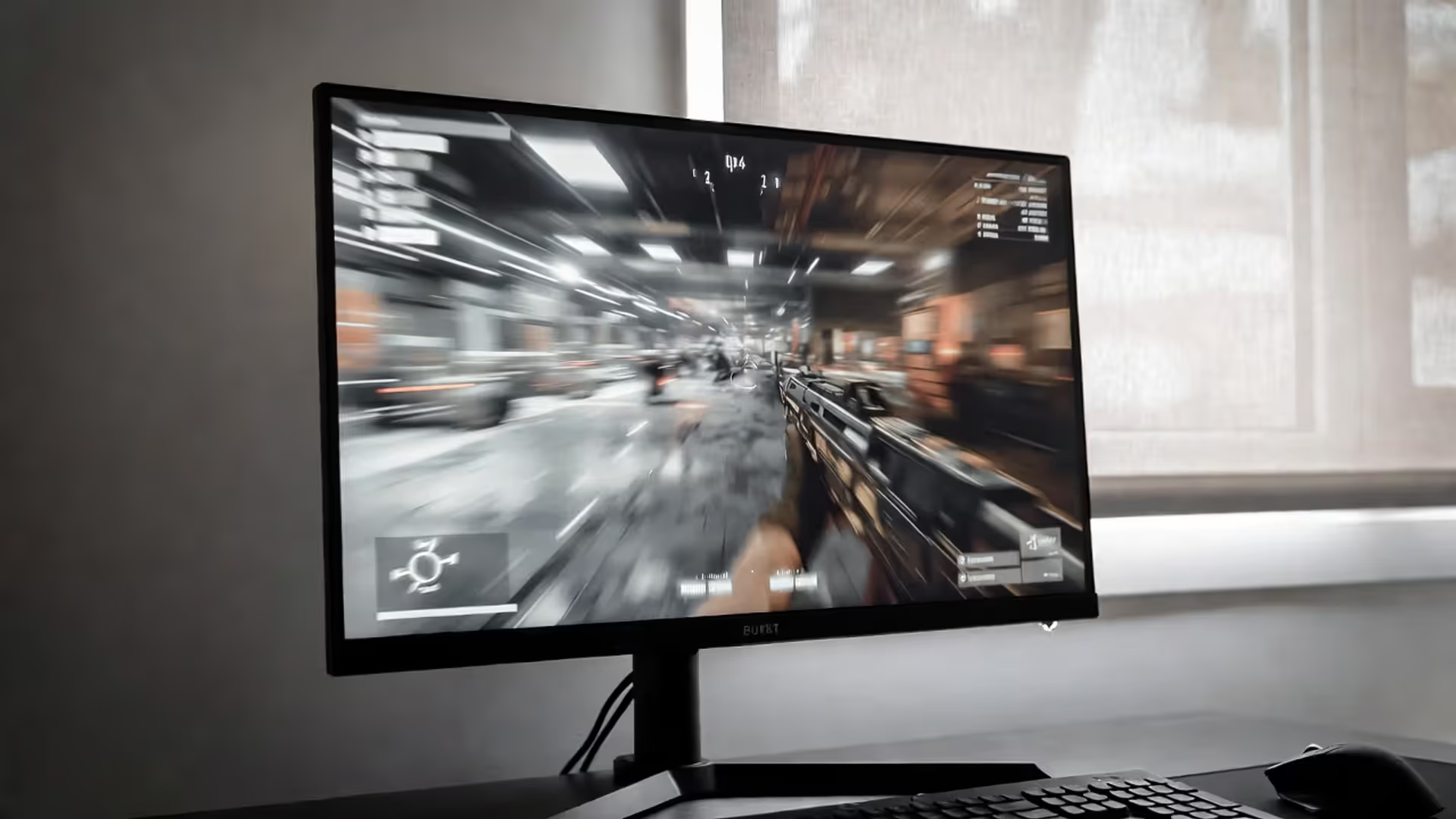
When you launch a modern game, your computer must render complex 3D environments, calculate physics interactions, track dozens of AI characters, process your inputs with near-zero delay, and push all those pixels to your monitor at 60, 120, or even 240 frames per second. That requires specialized hardware working in concert.
The defining feature of any gaming PC is a dedicated graphics card—a component entirely absent or severely limited in most standard computers. While a typical Dell or HP office machine relies on integrated graphics built into the processor, a gaming rig pairs that processor with a separate GPU containing thousands of cores designed specifically for rendering game graphics.
Author: Megan Lewis;
Source: quantumcatanimation.com
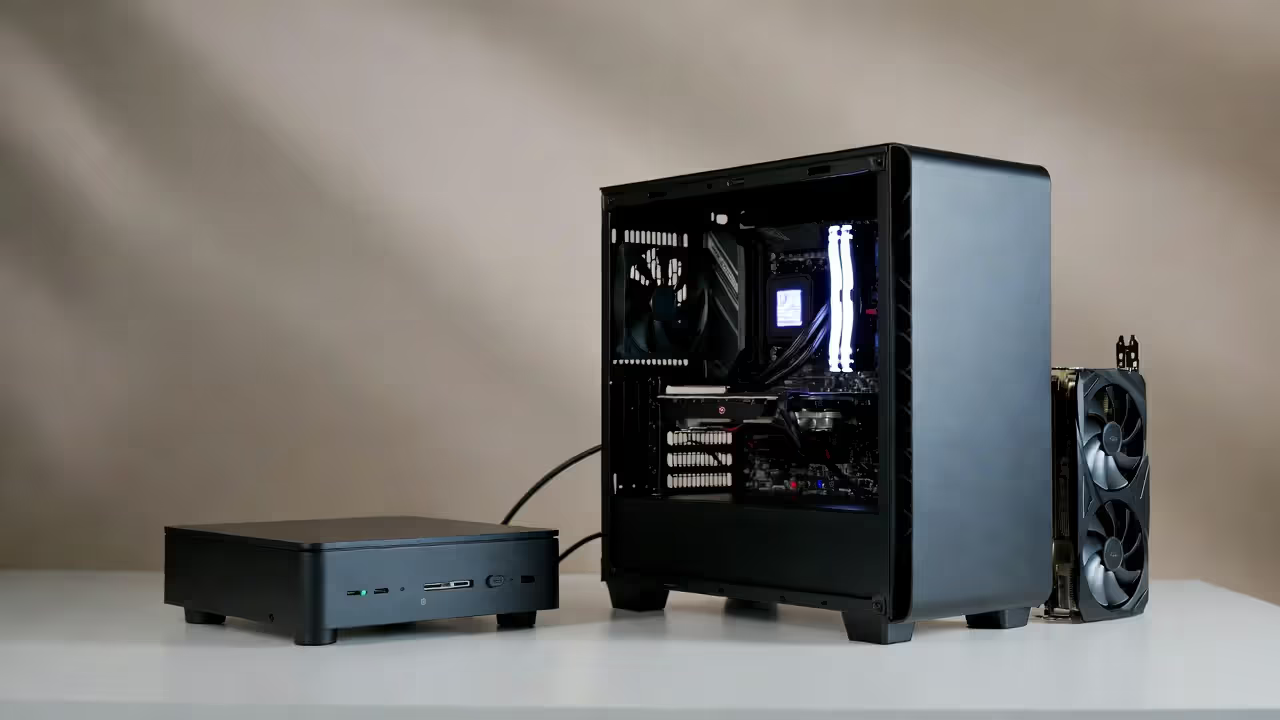
Beyond the GPU, gaming computers need faster processors with more cores, additional RAM to keep game assets loaded and ready, high-speed storage to reduce loading screens, robust cooling to handle sustained performance, and power supplies capable of feeding hungry components. The motherboard must support faster memory speeds and provide enough connectivity for upgrades.
A $500 office PC might use a modest dual-core processor, 8GB of RAM, and integrated graphics. A gaming PC at the same price point prioritizes a dedicated graphics card first, then builds around it with a capable processor and sufficient memory. The entire component selection philosophy differs because gaming computer basics revolve around one goal: consistent, smooth frame rates in demanding software.
Core Components That Power Your Gaming PC
Understanding pc gaming components helps you make informed decisions whether you're buying pre-built or assembling your own system. Six major parts determine your gaming experience.
Graphics Card (GPU): The Heart of Gaming Performance
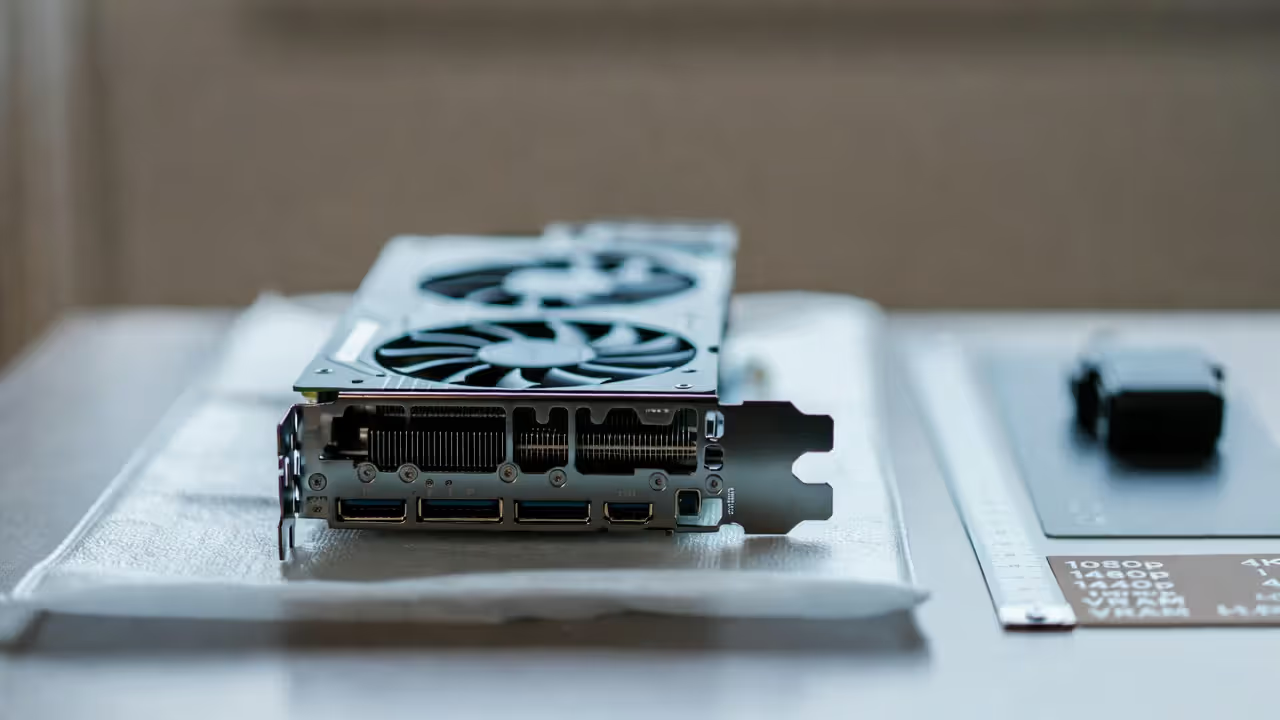
Your graphics card handles the heaviest lifting in any game. It takes instructions from the CPU and transforms them into the images you see on screen. The GPU contains thousands of small processing cores working in parallel to calculate lighting, shadows, textures, and effects.
NVIDIA and AMD dominate this market. NVIDIA's GeForce RTX series (4060, 4070, 4080, 4090) and AMD's Radeon RX cards (7600, 7700 XT, 7900 series) represent current generation options. Each tier roughly doubles in price while offering 30-50% more performance than the tier below.
For 1080p gaming at high settings, cards like the RTX 4060 or RX 7600 deliver 60+ FPS in most titles. Jumping to 1440p resolution demands more horsepower—RTX 4070 or RX 7800 XT territory. True 4K gaming at maximum settings requires top-tier cards like the RTX 4080 or RX 7900 XTX.
Author: Megan Lewis;
Source: quantumcatanimation.com
One critical detail: VRAM (video memory) matters more than many buyers realize. Games at higher resolutions and with high-resolution texture packs need 10-12GB minimum. Skimping on VRAM creates stuttering and texture pop-in that no amount of raw processing power fixes.
Processor (CPU): Balancing Speed and Multitasking
While the GPU renders frames, the CPU handles game logic, AI calculations, physics simulations, and background tasks. Modern games increasingly use multiple CPU cores, making 6-core processors the practical minimum and 8-core chips the sweet spot for gaming in 2024.
Intel's Core i5 and i7 series compete with AMD's Ryzen 5 and Ryzen 7 chips. For pure gaming, a Ryzen 5 7600X or Intel Core i5-13600K provides excellent performance without overspending. Content creators who stream, edit video, or run multiple applications benefit from the extra cores in Ryzen 7 7800X3D or Core i7-13700K processors.
Clock speed (measured in GHz) indicates how fast each core operates. Gaming favors higher clock speeds over massive core counts—a 6-core CPU running at 4.5 GHz often outperforms an 8-core chip at 3.8 GHz in games that can't leverage all those extra cores.
One common pitfall: pairing a high-end GPU with a budget CPU creates bottlenecks where the processor can't feed instructions fast enough to keep the graphics card working at full capacity. Match your CPU tier to your GPU tier.
RAM, Storage, and Motherboard Essentials
Memory (RAM): 16GB represents the baseline for gaming in 2024. Some newer titles already recommend 32GB, especially at higher resolutions with maximum settings. Speed matters too—DDR4-3200 or DDR5-5600 ensures your CPU isn't waiting on memory access. Buying a 2x8GB kit instead of a single 16GB stick enables dual-channel mode, which effectively doubles memory bandwidth.
Storage: Solid-state drives (SSDs) have become non-negotiable. A SATA SSD loads games 3-4 times faster than old mechanical hard drives. NVMe SSDs using the PCIe interface load even faster, though the difference between SATA and NVMe matters less in actual gameplay than loading screens. Budget 500GB minimum for your operating system and a few large games; 1TB provides comfortable breathing room.
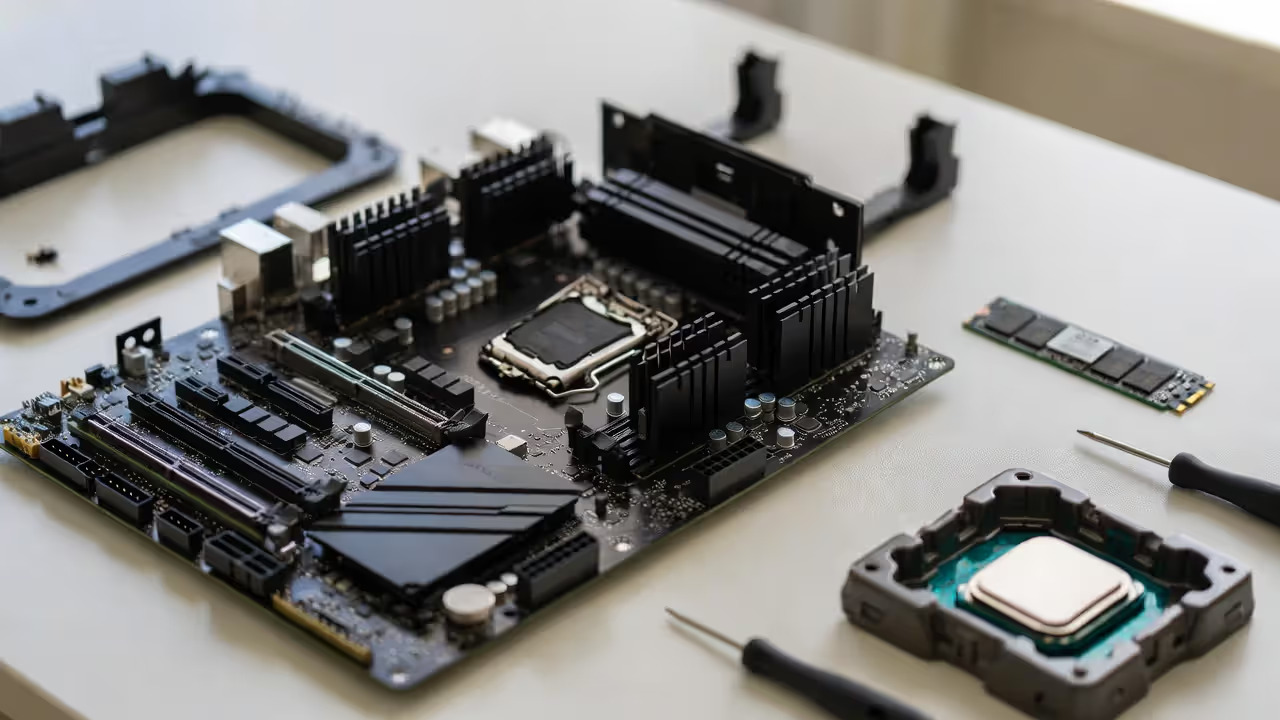
Motherboard: This circuit board connects everything together. Choose based on your CPU socket (AM5 for current AMD chips, LGA 1700 for Intel 13th/14th gen), desired features (Wi-Fi, USB-C, RGB headers), and upgrade path. B-series chipsets (B650 for AMD, B760 for Intel) offer the best value. X-series boards add overclocking support and extra connectivity at higher prices.
Author: Megan Lewis;
Source: quantumcatanimation.com
Power Supply: Calculate your GPU and CPU power draw, then add 150-200W headroom. A system with an RTX 4070 and Ryzen 7 7700X needs 600-650W minimum. Don't cheap out here—quality units from Corsair, EVGA, or Seasonic include proper protections and longer warranties. Look for 80+ Bronze certification at minimum, with Gold or Platinum ratings indicating better efficiency.
Cooling: Stock CPU coolers handle basic needs but run loud under load. A $30-40 tower air cooler keeps temperatures lower and noise down. Liquid cooling (AIO units) costs more but fits in smaller cases and looks cleaner. Your GPU comes with built-in cooling, though case airflow matters—two intake fans and one exhaust create positive pressure that reduces dust while maintaining temperatures.
How Much Should You Spend on a Gaming PC?
Gaming PC budgets break into three practical tiers, each delivering different performance levels and compromises.
Entry-level systems ($700-$900) target 1080p gaming at medium-to-high settings. You'll hit 60 FPS in most games, though the newest AAA titles might require turning down a few settings. These builds prioritize the GPU, often pairing a capable mid-range graphics card with a budget processor that won't bottleneck gaming performance.
Mid-range builds ($1,200-$1,600) dominate the market for good reason. They handle 1080p gaming at maximum settings with high refresh rates (120+ FPS) or comfortable 1440p gaming at 60-90 FPS. Component quality improves across the board—better cooling, faster storage, more RAM, and room for future upgrades.
High-end systems ($2,000+) chase 1440p high-refresh gaming (144+ FPS) or 4K resolution. Diminishing returns kick in hard above $2,500 unless you're targeting professional content creation or absolute maximum settings in every scenario.
| Budget Tier | CPU | GPU | RAM | Storage | Expected Performance |
| Entry ($800) | Ryzen 5 5600 / i5-12400F | RTX 4060 / RX 7600 | 16GB DDR4-3200 | 500GB NVMe SSD | 1080p high: 60-90 FPS |
| Mid-Range ($1,400) | Ryzen 5 7600X / i5-13600K | RTX 4070 / RX 7800 XT | 16GB DDR5-5600 | 1TB NVMe SSD | 1440p high: 80-120 FPS |
| High-End ($2,200) | Ryzen 7 7800X3D / i7-13700K | RTX 4080 / RX 7900 XTX | 32GB DDR5-6000 | 2TB NVMe SSD | 4K high: 60-90 FPS; 1440p ultra: 144+ FPS |
These figures assume new components at typical 2024 pricing. The used market, sales events, and previous-generation parts shift these numbers—a $1,000 budget might score mid-range performance with smart shopping.
According to Tom's Hardware editor Jarred Walton, "The biggest mistake we see is people spending $800 on a GPU and $150 on a CPU, then wondering why their frame rates are inconsistent. Balance matters more than any single component."
Pre-Built vs. Custom-Built: Which Route Should You Take?
Pre-built gaming PCs from companies like NZXT, iBuyPower, or even Dell's Alienware line offer convenience. You select a configuration, place an order, and receive a tested system with a warranty covering the entire machine. No compatibility research, no assembly anxiety, no troubleshooting if something doesn't work.
The trade-offs? You pay 10-20% more than equivalent parts would cost separately. Manufacturers often cut corners on power supplies, motherboards, and cooling—components that don't appear on spec sheets but affect longevity and upgrade potential. Proprietary cases or motherboards sometimes limit future modifications.
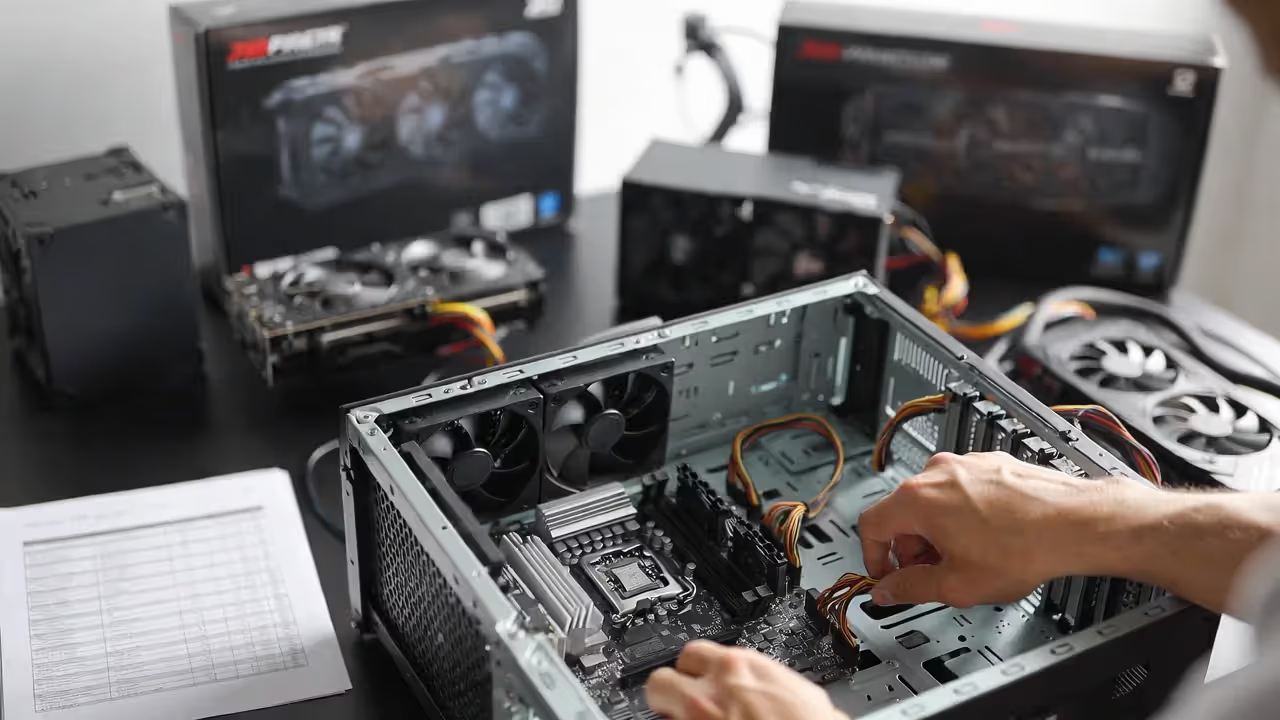
Building your own system costs less and teaches you exactly how your PC works, making future upgrades and troubleshooting straightforward. Modern components use standardized connectors that only fit the correct way. YouTube tutorials walk through every step. The process takes 2-3 hours for a first-timer.
Author: Megan Lewis;
Source: quantumcatanimation.com
Pre-built makes sense if you value time over money, want a single warranty contact, or feel genuinely uncomfortable working with electronics. Custom-built suits anyone willing to spend an afternoon following instructions for better value and upgrade flexibility. There's no wrong answer—just different priorities.
One middle path: "barebones" kits that include a case, motherboard, and power supply, letting you add the CPU, GPU, and RAM yourself. These reduce compatibility concerns while preserving most of the cost savings and learning experience.
Setting Up Your Gaming PC: Peripherals and Workspace Considerations
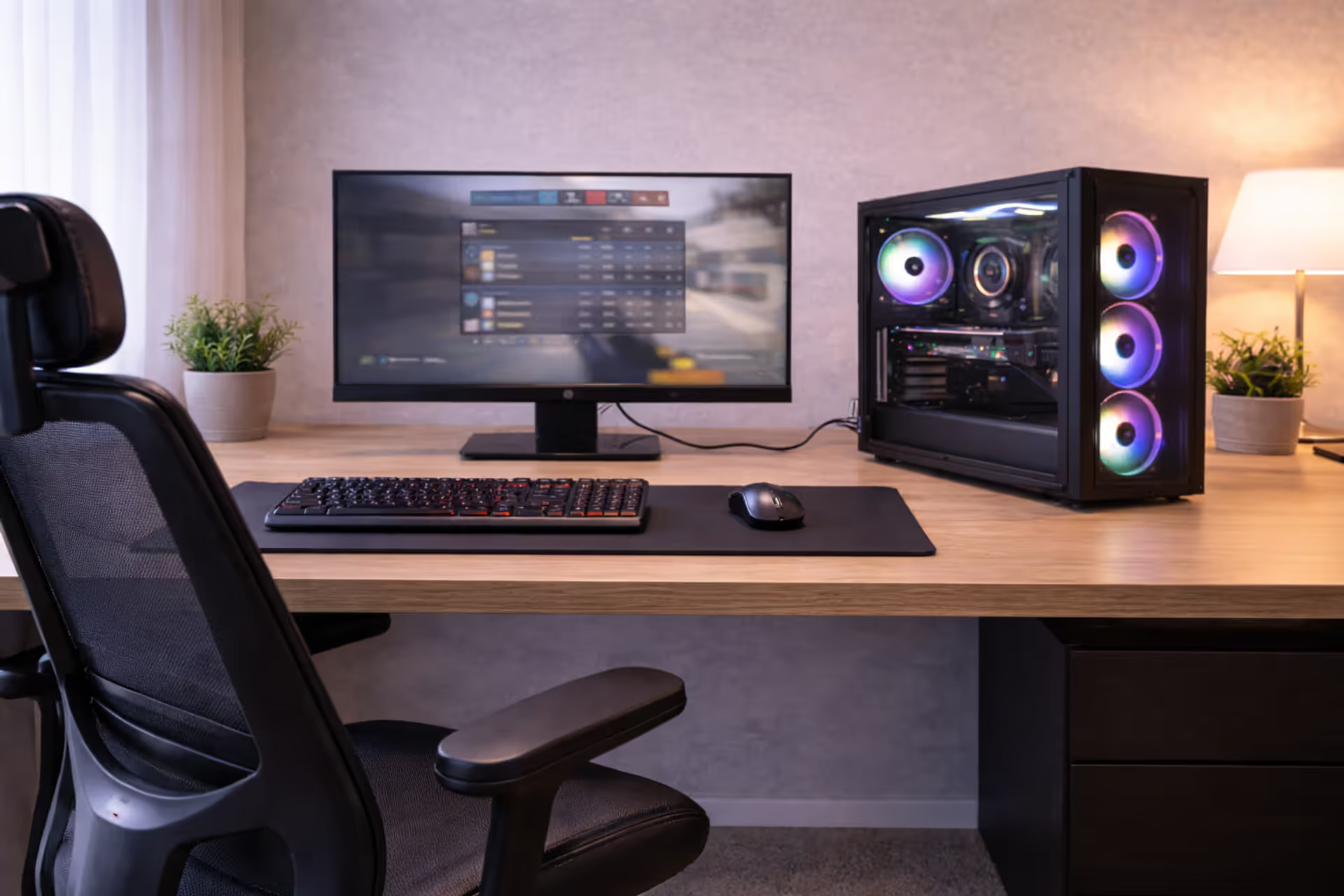
Your gaming hardware overview isn't complete without considering the peripherals and environment that surround your PC.
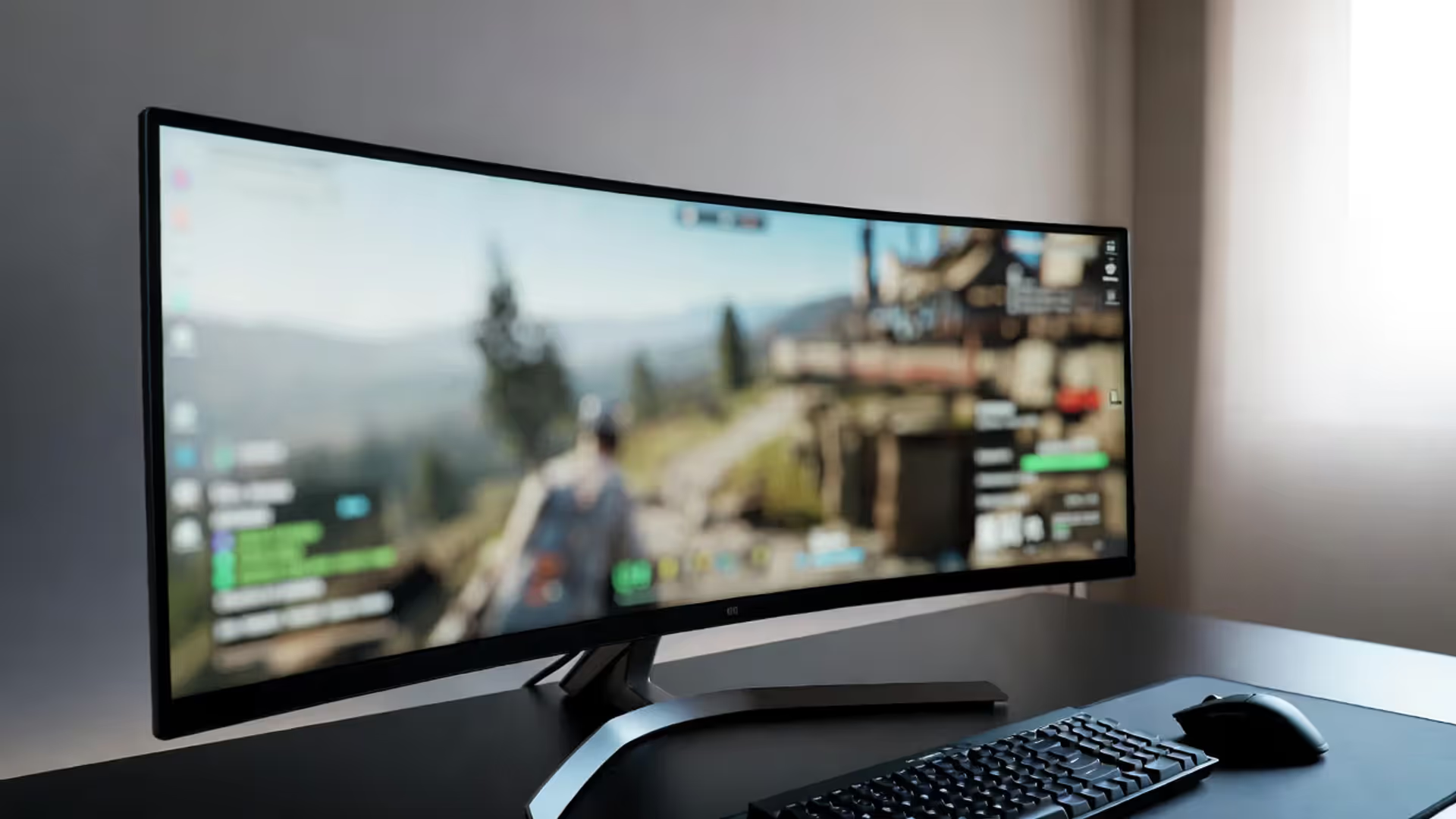
Monitor selection impacts your experience as much as your GPU. A 1080p 144Hz monitor costs $150-200 and pairs beautifully with mid-range systems, delivering smooth motion in fast-paced games. 1440p 165Hz displays ($300-400) offer sharper images without the GPU demands of 4K. IPS panels provide better colors and viewing angles than TN panels, while VA panels split the difference with deeper blacks.
Response time under 5ms prevents ghosting in motion. Adaptive sync (G-Sync or FreeSync) eliminates screen tearing by synchronizing your monitor's refresh rate with your GPU's output. Don't buy a 4K monitor if your GPU can't push 4K frame rates—you'll just play at lower resolution anyway.
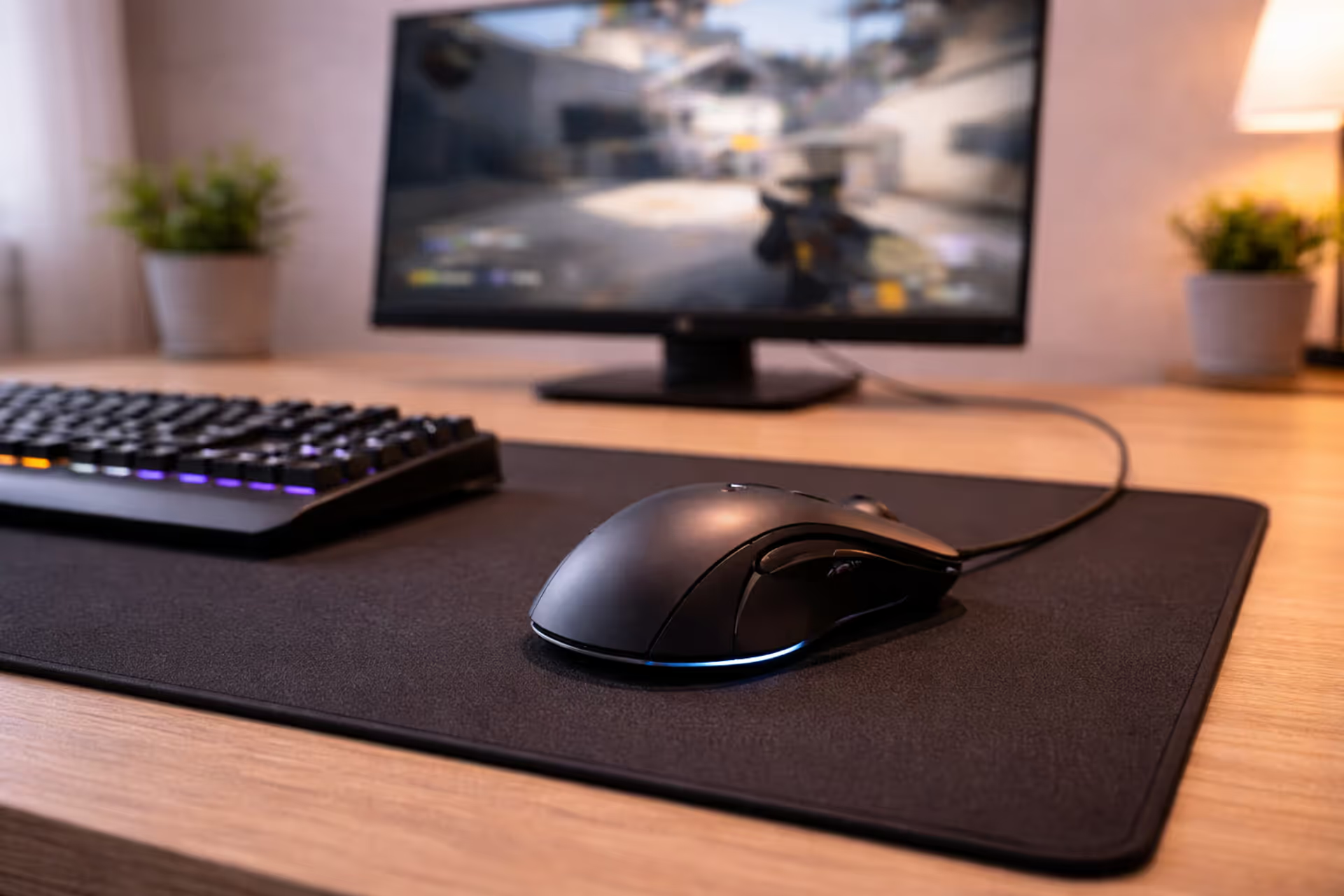
Keyboard and mouse preferences run deep. Mechanical keyboards offer satisfying tactile feedback and durability; membrane keyboards cost less and run quieter. For mice, sensor quality matters more than DPI numbers—modern optical sensors from PixArt or Logitech track flawlessly at 800-3200 DPI. Wireless technology has eliminated latency concerns, though wired mice never need charging.
Desk setup sounds mundane but affects comfort during long sessions. Position your monitor arm's length away with the top of the screen at or slightly below eye level. Your keyboard and mouse should allow your elbows to rest at 90-degree angles. Cable management using velcro straps or channels under your desk prevents the rat's nest that accumulates over time.
Lighting serves function and aesthetics. Bias lighting behind your monitor reduces eye strain by decreasing the contrast between your bright screen and dark room. RGB components inside your case look impressive through tempered glass panels, though they add cost without performance benefit. Prioritize function first, then add lighting if budget permits.
Common Mistakes First-Time Gaming PC Buyers Make
Overspending on the CPU while skimping on the GPU represents the most frequent error. A $400 processor paired with a $200 graphics card delivers worse gaming performance than a $200 CPU with a $400 GPU. Games lean heavily on graphics processing; allocate your budget accordingly.
Ignoring cooling and airflow creates thermal throttling where components slow themselves down to avoid overheating. That $1,500 worth of hardware can't maintain peak performance in a case with poor ventilation. Two intake fans and one exhaust fan provide adequate airflow in most builds. Keep your PC off carpet, which blocks bottom intake vents and introduces dust.
Creating bottlenecks happens when components operate at vastly different performance tiers. Pairing an RTX 4090 with a Ryzen 5 5600 means the CPU can't feed instructions fast enough to utilize the GPU fully. Conversely, an i9-13900K with an RTX 4050 wastes processing power that games won't leverage. Match your component tiers.
A chain is only as strong as its weakest link.
— Thomas Reid
Chasing future-proofing myths leads to overspending on features you might never use. That motherboard with eight RAM slots sounds great until you realize you'll upgrade your entire platform before filling four slots. Buy for your current needs plus one reasonable upgrade step, not theoretical scenarios five years out.
Forgetting about the operating system adds an unexpected $100-140 for Windows 11 if you're building from scratch. Pre-builts include this cost. Factor it into your budget or explore Linux gaming, which has improved dramatically but still lacks compatibility with some titles and anti-cheat systems.
Skipping research on specific models within a product line causes disappointment. Not all RTX 4070 cards perform identically—some use better cooling, higher factory overclocks, or quieter fans. Reviews from Tom's Hardware, GamersNexus, or TechPowerUp reveal which specific models offer better value or avoid quality issues.
Frequently Asked Questions About Gaming PCs
Choosing the right gaming PC setup comes down to honest assessment of your gaming habits, budget constraints, and technical comfort level. Someone playing competitive shooters at 1080p needs different hardware than someone exploring open-world RPGs at 4K. Your available budget determines whether you're building around an RTX 4060 or an RTX 4080.
Start by defining your target resolution and the types of games you play most. Allocate 40-50% of your budget to the graphics card, 20-25% to the processor, and distribute the remainder across memory, storage, and other components. Decide whether pre-built convenience or custom-built value aligns better with your priorities.
The pc gaming setup guide you've just read provides the framework for informed decisions. Whether you're configuring a pre-built system or selecting individual components, you now understand what each part contributes to your gaming experience and where to invest for the performance you want.
Gaming PCs offer something consoles can't match: the ability to customize, upgrade, and optimize your experience exactly how you want it. That flexibility requires more upfront research, but it pays dividends in performance per dollar and long-term satisfaction.