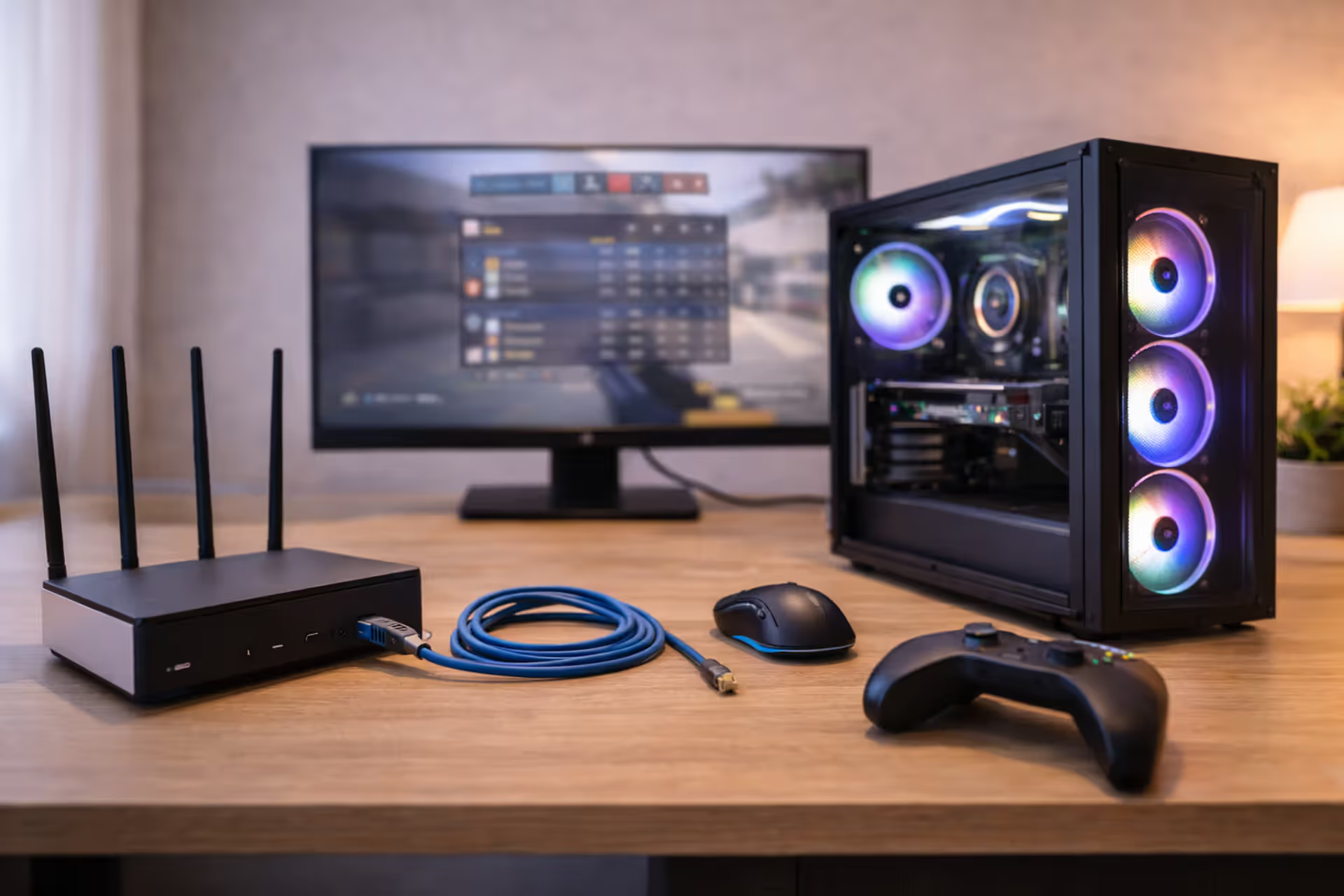
Gaming Router: Does Specialized Hardware Actually Reduce Lag?
How to Choose a Gaming Router?

Content
You're three kills away from a ranked victory when your character rubber-bands across the map. Your opponent's shot registers first. Match lost. Was it your internet, your router, or just bad luck? This question drives thousands of gamers toward "gaming routers"—devices that cost two to five times more than standard models and promise lag-free performance.
But can a router actually deliver lower ping, or is this just premium packaging on commodity hardware? The answer depends on your specific network environment, the games you play, and whether you're addressing the right bottleneck.
What Separates a Gaming Router from Standard Wi-Fi Equipment
A gaming router isn't a fundamentally different device. Both types route packets between your local network and the internet. The distinction lies in three areas: processing power, traffic management features, and firmware customization.
Standard routers from ISPs typically use single-core processors running at 600-900 MHz with 128-256 MB of RAM. They handle basic routing tasks adequately when two or three devices connect simultaneously. Add a dozen smart home gadgets, streaming TVs, and multiple phones, and these routers begin queuing packets indiscriminately—your game data waits behind someone's Instagram upload.
Gaming routers deploy dual or quad-core processors (1.5-2.2 GHz) with 512 MB to 1 GB of RAM. This extra horsepower doesn't make individual packets travel faster through the internet, but it prevents processing delays when the router juggles dozens of simultaneous connections. If your household runs ten connected devices during peak hours, a more powerful processor reduces the microseconds spent sorting traffic.
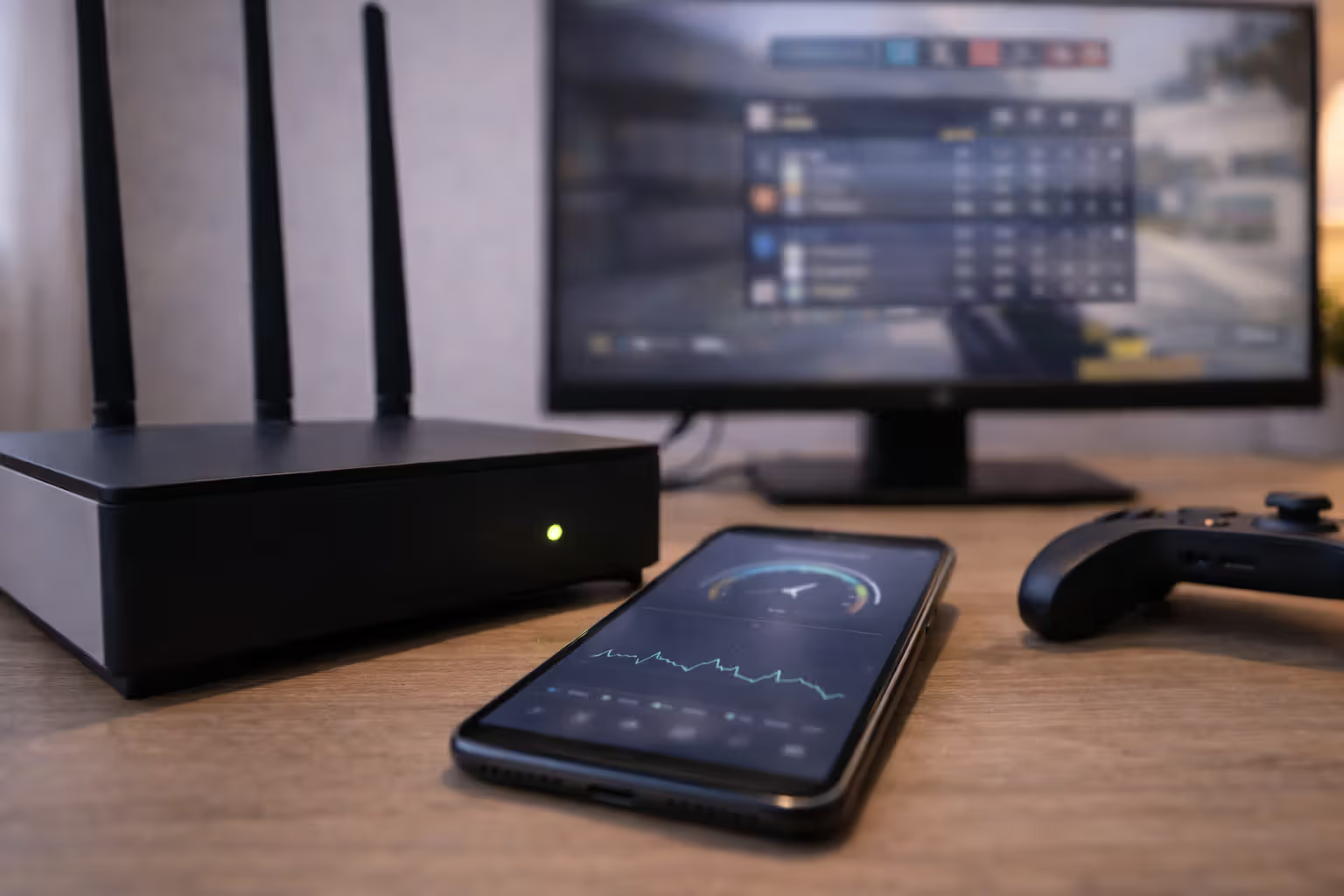
The second differentiator is Quality of Service (QoS) engines—software that identifies and prioritizes gaming packets. Budget routers often include rudimentary QoS, but it's usually a simple bandwidth limiter. Gaming-focused models use deep packet inspection (DPI) to recognize game traffic by analyzing packet headers, port numbers, and communication patterns. When configured properly, these systems give your game data express-lane treatment.
Author: Tyler Brooks;
Source: quantumcatanimation.com
Marketing materials highlight RGB lighting, aggressive chassis designs, and terms like "tri-band" or "gaming accelerator." Some of these features matter; others don't. Tri-band routers (one 2.4 GHz band, two 5 GHz bands) can dedicate an entire radio channel to gaming devices, reducing interference. RGB lighting makes no performance difference whatsoever—it's aesthetic preference dressed up as technology.
The measurable performance gap between a $60 standard router and a $300 gaming router exists, but it's not universal. If you live alone, play wired, and have a 100 Mbps connection with consistent latency, you won't see improvement. If you're in a household where someone streams 4K video while you're in a competitive match, the difference becomes tangible.
How Quality of Service (QoS) Prioritizes Gaming Traffic
QoS functions like a bouncer at a nightclub—it decides who gets in first. Without QoS, your router processes packets first-come, first-served. A large file download generates thousands of packets that can clog the queue ahead of your game's time-sensitive data. QoS reorders this queue based on rules you define.
Most gaming routers offer two QoS approaches: device-based priority and application-based priority. Device-based systems let you designate your gaming PC or console as "highest priority," ensuring all traffic from that device jumps the queue. This works well if you only game on one device and don't run bandwidth-heavy applications simultaneously on that same machine.
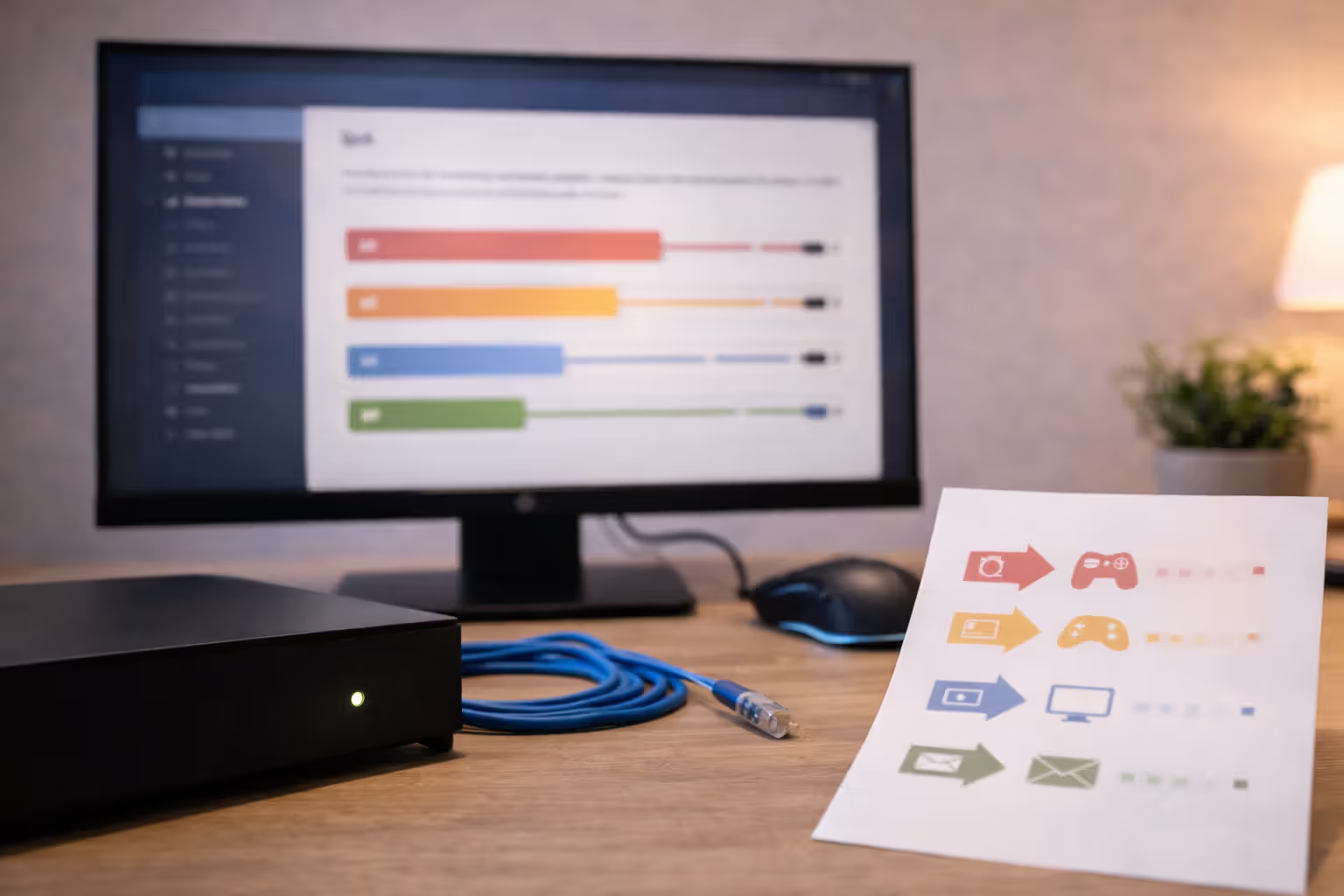
Application-based QoS identifies traffic by type—gaming, streaming, web browsing, file transfers. The router examines packet characteristics to categorize traffic automatically. Some routers maintain databases of popular game servers and recognize traffic to those IP addresses. Others detect the small, frequent packet pattern typical of online games (30-120 bytes sent every 16-33 milliseconds).
Author: Tyler Brooks;
Source: quantumcatanimation.com
The real benefit appears during bandwidth contention. Imagine your 100 Mbps download connection. Someone starts a 50 GB game download while you're mid-match. Without QoS, that download might consume 95% of available bandwidth, leaving your game packets to squeeze through whatever remains. With proper QoS, the router throttles the download to 80-85 Mbps, reserving 15-20 Mbps for your game—far more than the 1-2 Mbps most online games require.
Upload bandwidth matters even more for latency reduction gaming. Many residential connections offer asymmetric speeds: 100 Mbps down, but only 10 Mbps up. When someone in your house uploads photos to cloud storage, that 10 Mbps pipe fills quickly. Your game's outgoing packets (position updates, action commands) get delayed, causing the lag you feel as unresponsive controls. QoS prevents upload saturation by limiting background uploads to 70-80% capacity.
Configuring QoS Rules for Popular Online Games
Generic QoS presets rarely optimize performance for specific games. Manual configuration takes ten minutes but delivers better results.
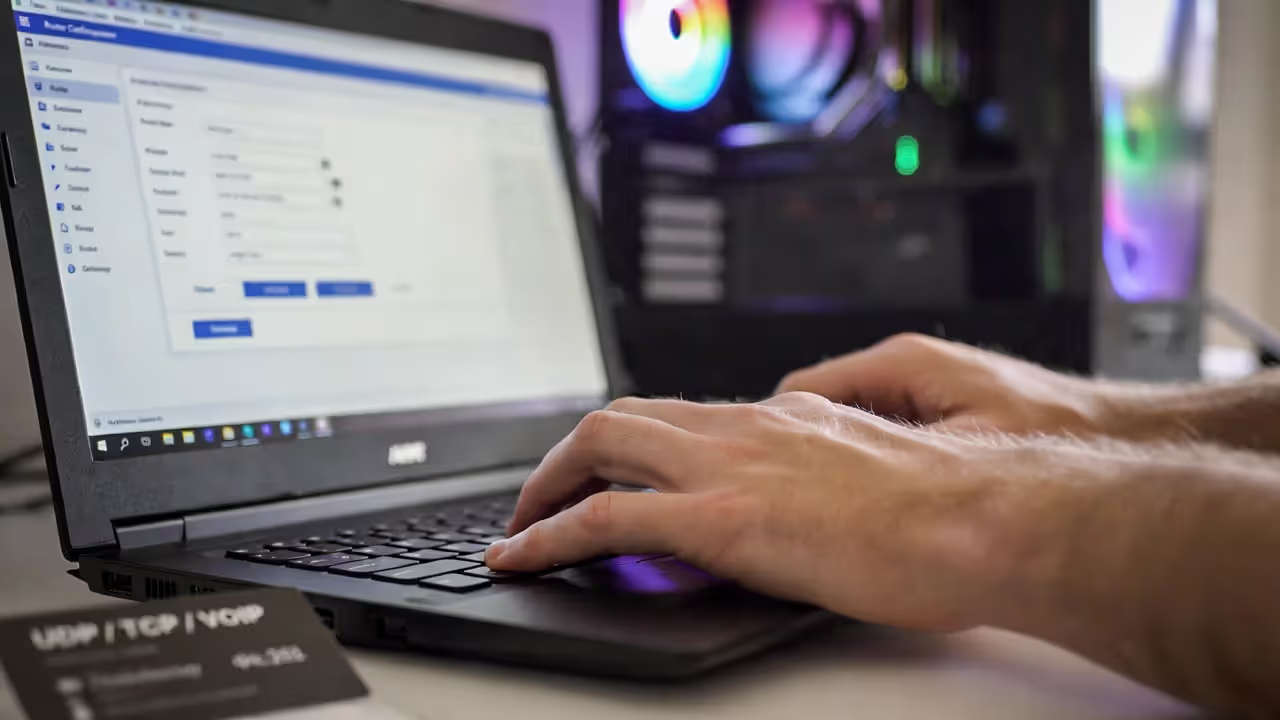
For first-person shooters like Call of Duty or Valorant, create rules prioritizing UDP traffic on ports 3074-3100 (common game ports, though specific ranges vary). Set this traffic to "highest" priority. Simultaneously, create a "low" priority rule for TCP ports 80 and 443 during gaming hours—this deprioritizes web browsing and streaming without blocking it.
Battle royale games (Fortnite, Apex Legends) benefit from prioritizing both game client traffic and voice chat. These games often use separate connections for voice (Discord, in-game VOIP), so add rules for UDP ports 50000-65535, which cover many VOIP applications. Voice packets are tiny but time-sensitive; delays create the robotic, stuttering audio that disrupts team coordination.
For MOBAs like League of Legends or Dota 2, ping stability matters more than raw speed. These games send small packets consistently—any jitter (variance in latency) disrupts last-hitting and skillshot timing. Enable "minimize latency" or "gaming mode" settings, which reduce the router's packet buffering. Smaller buffers mean less queuing delay but require more stable internet connections to avoid packet loss.
Author: Tyler Brooks;
Source: quantumcatanimation.com
Console gamers should prioritize the console's IP address entirely rather than specific ports. Consoles run system updates, download patches, and stream content simultaneously with gaming. Device-level priority ensures game traffic wins regardless of what else the console is doing.
Test your QoS settings using ping tests during typical household usage. Run a continuous ping to your game server (use the server browser or network diagnostic tools to find the IP address) while someone streams Netflix and another person browses. Properly configured QoS should keep ping variance under 5-10 ms even during heavy usage.
Real-World Impact on Latency and Ping Stability
Ping improvements from gaming routers are modest but meaningful in specific scenarios. Expect 3-15 milliseconds of improvement in local network latency—the time between your device and the router. This matters because it's latency you can control. The remaining 20-60 ms to reach game servers depends on your ISP and physical distance.
A standard router might add 8-12 ms of processing delay under load. A gaming router with hardware acceleration and better QoS reduces this to 2-5 ms. That 5-10 ms improvement won't help if your base ping is 80 ms due to server distance, but it's significant when you're at 25 ms base ping and fighting for competitive advantage.
Wired connections eliminate the single largest variable: wireless interference. Wi-Fi adds 1-30 ms of latency depending on signal strength, channel congestion, and protocol overhead. A wired Ethernet connection delivers consistent 1-2 ms router latency. If you're serious about internet optimization gaming, run a cable. Gaming routers with Wi-Fi 6 or 6E improve wireless performance through better channel utilization and reduced overhead, but physics still favors cables.
Ping stability often matters more than average ping. A connection that varies between 30-35 ms feels smoother than one jumping between 25-50 ms. Gaming routers with better QoS reduce this jitter by preventing queue buildup. You'll notice this as more consistent hit registration and predictable movement timing.
Most gamers obsess over average ping, but jitter kills competitive play. A router that keeps your ping within a 5 ms range consistently outperforms one that occasionally hits 2 ms lower but spikes unpredictably. Gaming routers earn their value in consistency, not raw speed.
— Marcus Chen, Network Engineer at a major esports tournament organizer
| Router Model | Avg. Ping Reduction | QoS Features | Wi-Fi Standard | Price Range | Best Use Case |
| ASUS RT-AX86U | 5-8 ms under load | Adaptive QoS, Mobile Game Mode | Wi-Fi 6 (AX5700) | $250-$280 | Multi-device households, PS5/Xbox Series X |
| Netgear Nighthawk XR1000 | 7-12 ms under load | DumaOS, Geo-filtering | Wi-Fi 6 (AX5400) | $280-$320 | Competitive FPS players, server selection priority |
| TP-Link Archer AX6000 | 4-7 ms under load | HomeCare QoS, Game Accelerator | Wi-Fi 6 (AX6000) | $220-$260 | Budget-conscious, large coverage needs |
| ASUS ROG Rapture GT-AXE16000 | 8-15 ms under load | Triple-level game acceleration, VPN Fusion | Wi-Fi 6E (AXE16000) | $550-$600 | Enthusiast, 6 GHz band early adoption |
| Netgear Nighthawk Pro Gaming XR500 | 6-10 ms under load | DumaOS, Traffic Prioritization | Wi-Fi 5 (AC2600) | $180-$220 | Budget gaming, older device compatibility |
The table shows diminishing returns above $300. The most expensive router delivers marginally better ping reduction than mid-tier options. The extra cost buys additional features (6 GHz band, more LAN ports, VPN capabilities) rather than dramatically better gaming performance.
Common Setup Mistakes That Negate Router Benefits
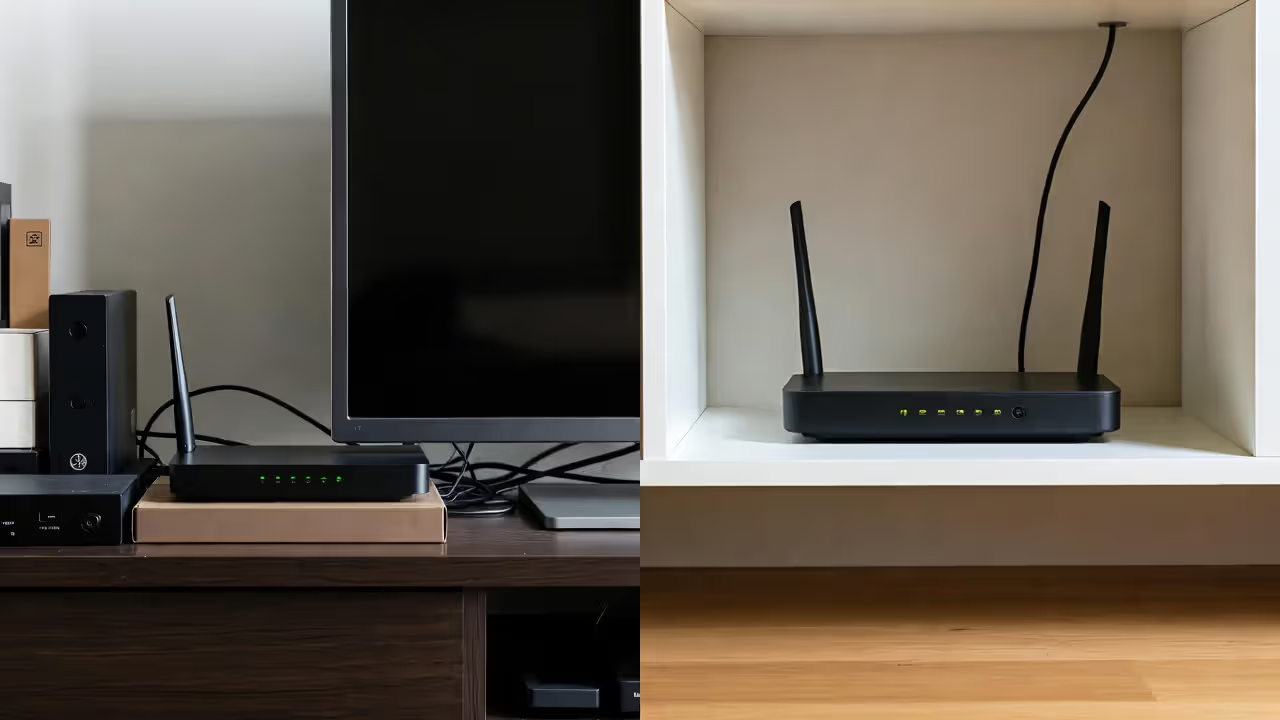
Buying a gaming router won't help if you place it inside a cabinet, behind your TV, or in the basement. Routers broadcast omnidirectionally—walls, floors, and metal objects absorb or reflect signals. Place your router centrally, elevated (on a shelf, not the floor), and away from other electronics. That $300 router performs like a $50 model when its signal fights through three walls and a microwave oven.
Outdated firmware contains bugs that cause packet loss, memory leaks, and security vulnerabilities. Manufacturers release updates quarterly for popular models. Enable automatic updates or check manually every two months. A 2023 router running 2022 firmware might miss critical QoS improvements or Wi-Fi 6 optimizations.
ISP bottlenecks are the most common problem no router can solve. If your ISP provides 50 Mbps with 60 ms ping to game servers, a gaming router won't reduce that 60 ms. That latency exists between your ISP's network and the game server—outside your router's control. Run traceroute tests to game servers to identify where latency accumulates. If the first hop (your router) shows 2 ms but hop three (your ISP's regional network) shows 45 ms, your ISP is the bottleneck.
DNS settings affect connection establishment speed, not ping during gameplay. Switching from your ISP's DNS to Google (8.8.8.8) or Cloudflare (1.1.1.1) might reduce the time to initially connect to game servers by 50-200 milliseconds. Once connected, DNS plays no role. Don't expect ongoing ping improvements from DNS changes—that's a misconception spread by outdated advice.
Channel congestion ruins Wi-Fi performance in apartment buildings. Your router might default to channel 6 on the 2.4 GHz band—the same channel your neighbors use. Download a Wi-Fi analyzer app and switch to the least congested channel. For 5 GHz, use channels 36-48 or 149-165 (if available in your region) to avoid overlap. Gaming routers with automatic channel selection handle this, but verify it's working—sometimes "auto" picks poorly.
Buffer bloat causes lag spikes when your connection saturates. Many routers use large buffers to maximize throughput, but this creates queuing delay. Enable SQM (Smart Queue Management) or "anti-bufferbloat" features in your router's QoS settings. This caps your connection speed to 85-95% of maximum, preventing buffer overflow. You sacrifice 5-10 Mbps of throughput for 10-20 ms better latency consistency—a worthwhile trade for gaming.
Author: Tyler Brooks;
Source: quantumcatanimation.com
Cost Analysis: When Gaming Routers Make Financial Sense
Gaming routers range from $150 to $700. The value proposition depends on your current equipment, household network usage, and gaming commitment level.
If you're using an ISP-provided router from 2018, any modern router—gaming-focused or not—will improve performance. A $120 Wi-Fi 6 router with basic QoS delivers 70% of the benefit of a $300 gaming router for 40% of the cost. Spend the difference on a better mouse or upgrading from 60 Hz to 144 Hz monitor—those improve your gaming experience more noticeably.
Competitive gamers playing ranked matches in latency-sensitive games (fighting games, tactical shooters, MOBAs) benefit most from gaming routers. When 5 ms separates victory from defeat, and you play 15-20 hours weekly, a $250 router is justifiable. It's equipment, like a quality gaming mouse or mechanical keyboard—tools that remove technical barriers to performance.
Casual players who game 3-5 hours weekly, mostly in single-player or cooperative games, won't notice enough difference to justify premium pricing. A standard Wi-Fi 6 router with basic QoS handles occasional gaming fine. Save the $150 price difference for games, subscriptions, or other entertainment.
Households with 4+ simultaneous users need traffic management regardless of gaming. In this scenario, a gaming router's QoS benefits everyone—gamers get priority, but improved traffic management prevents streaming interruptions and video call issues too. The "gaming" label is somewhat misleading; you're really buying better network management that happens to excel at gaming.
Alternative solutions sometimes deliver better value. Powerline adapters ($60-$100) bring wired connections to distant rooms without running cables through walls. This eliminates Wi-Fi latency entirely, often outperforming a gaming router's wireless improvements. Mesh systems ($200-$400) solve coverage problems in large homes but typically offer weaker QoS than dedicated gaming routers—they prioritize whole-home coverage over traffic prioritization.
ISP upgrades might cost less than you think. If you're on a 50 Mbps plan with high latency, upgrading to 100-200 Mbps often includes better routing infrastructure and lower base latency. Check whether your ISP offers fiber—fiber connections typically provide 10-20 ms lower latency than cable due to better infrastructure. A $20/month ISP upgrade delivers more ping improvement than any router.
Consider total cost over lifespan. A $300 gaming router lasting five years costs $60 annually. If it reduces your ping by 8 ms consistently and you game 500 hours yearly, that's $0.12 per gaming hour for measurably better performance. Frame it as equipment cost rather than luxury purchase—it's infrastructure supporting a hobby you spend hundreds of hours enjoying.
Frequently Asked Questions About Gaming Routers
Gaming routers deliver real, measurable improvements in specific situations: multi-device households, bandwidth-heavy usage patterns, and competitive gaming where milliseconds matter. They don't magically fix ISP problems, overcome geographic distance to servers, or transform a 60 ms connection into 10 ms.
The best approach combines multiple strategies. Start by testing your current setup—run ping tests during peak household usage to identify whether your router is actually the bottleneck. If your ping remains stable under load, save your money. If it spikes 20-40 ms when others use the network, a gaming router's QoS will help.
Prioritize wired connections wherever possible. A $15 Ethernet cable often outperforms $200 worth of wireless upgrades. For rooms where cables aren't practical, modern gaming routers with Wi-Fi 6 or 6E provide the next-best option.
Match your router investment to your gaming commitment and household needs. Casual players in small households don't need $500 routers. Competitive players in busy households see genuine benefit from advanced QoS and powerful hardware. The middle ground—$200-$300 routers with solid QoS and Wi-Fi 6—offers the best value for most gamers.
Remember that internet optimization gaming extends beyond hardware. Reduce background applications, close bandwidth-heavy programs during gaming sessions, schedule large downloads for off-hours, and communicate with household members about bandwidth usage during important matches. Technology helps, but habits and coordination matter just as much.
A gaming router is a tool, not a miracle. It removes one potential source of latency and inconsistency from a complex system. Combined with good internet service, proper configuration, and realistic expectations, it's a worthwhile upgrade that makes your gaming experience noticeably smoother and more responsive.