How to Choose a Gaming Mouse That Matches Your Play Style
How to Choose a Gaming Mouse?

Content
Picking the right gaming mouse isn't about buying the most expensive model or chasing the highest spec sheet numbers. The mouse that works for a professional CS:GO player might feel terrible in your hand, and the sensor praised in every review could track poorly on your desk surface. Your grip, hand size, game genre, and even your mousepad material all factor into whether a mouse will help or hurt your performance.
This guide breaks down the technical specifications that actually matter, explains how different grip styles demand different mouse shapes, and shows you how to avoid the setup mistakes that sabotage accuracy before you even launch a game.
What Separates Gaming Mice from Standard Mice
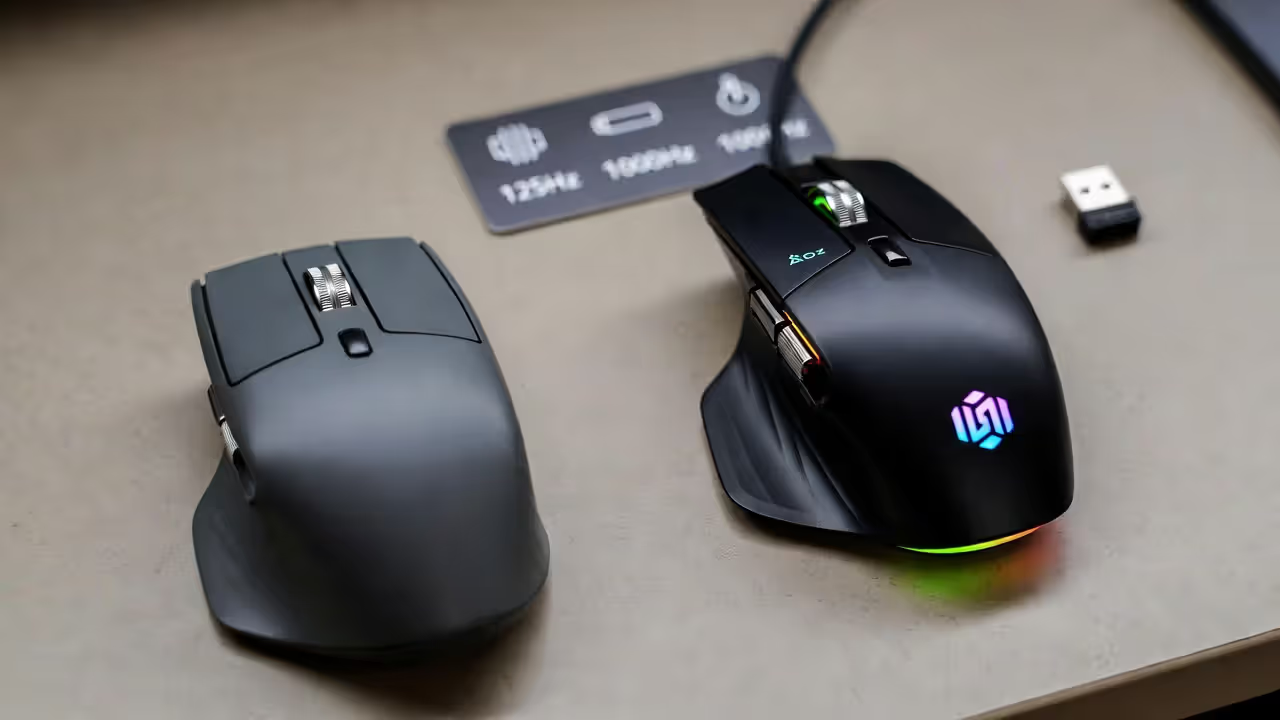
Standard office mice use sensors designed for basic cursor movement across spreadsheets and web pages. They sample position data at 125 Hz (125 times per second) and use prediction algorithms to smooth out the cursor path. This creates noticeable lag and makes pixel-precise movements impossible.
A gaming mouse uses sensors that sample at 1000 Hz, capturing your hand movement eight times more frequently. This polling rate reduces the delay between physical movement and on-screen response to one millisecond. The difference becomes obvious when you try to track a strafing opponent or flick to a target—the cursor arrives exactly where your hand stopped, with no overshoot or smoothing.
Build quality matters more than marketing suggests. Gaming mice use mechanical switches rated for 50–80 million clicks instead of the 5–10 million clicks in office mice. The shell construction prevents flex when you grip tightly during intense moments. Feet (the PTFE pads on the bottom) are thicker and lower-friction, letting the mouse glide rather than drag. Cable design reduces pull and snag on wired models.
Author: Brandon Hayes;
Source: quantumcatanimation.com
The sensor position also differs. Gaming mice place the sensor closer to the center of mass, which reduces spin-out issues when you lift and reposition the mouse during low-sensitivity play. Office mice mount sensors wherever fits the internal layout, leading to inconsistent tracking during quick repositioning.
Understanding DPI and Why Higher Isn't Always Better
DPI (dots per inch) measures how many pixels your cursor moves for every inch you physically move the mouse. A mouse set to 800 DPI moves the cursor 800 pixels when you slide it one inch across your mousepad. Marketing teams love advertising 20,000+ DPI because bigger numbers sound better, but most competitive players use 400–1600 DPI.
The myth that higher DPI automatically improves accuracy comes from a misunderstanding of how sensors work. Modern sensors track accurately across a wide DPI range, but extremely high DPI settings amplify every microscopic hand tremor. At 12,000 DPI, the tiny muscle movements you can't consciously control send your crosshair jerking across the screen.
Lower DPI settings also interact better with in-game sensitivity multipliers. Games apply sensitivity on top of your DPI, and the combination determines your effective sensitivity (eDPI). Using 400 DPI with 2.0 in-game sensitivity gives you 800 eDPI. Using 3200 DPI with 0.25 in-game sensitivity gives the same 800 eDPI, but the second combination can introduce pixel skipping on some systems because the game is dividing a large number down to a small movement.
Author: Brandon Hayes;
Source: quantumcatanimation.com
How to Find Your Ideal DPI Setting
Start at 800 DPI—it's the middle ground most players find comfortable. Open an aim trainer or practice range and make 180-degree turns. If you run out of mousepad space before completing the turn, increase DPI or in-game sensitivity. If your crosshair feels twitchy and overshoots targets, decrease one or both.
Professional FPS players typically land between 200–400 eDPI for tactical shooters (Valorant, CS2) and 800–1200 eDPI for faster games (Apex Legends, Overwatch 2). These ranges let you make precise micro-adjustments while still being able to turn quickly when needed.
Test your setting by tracking a moving target at medium range. Your crosshair should stay on target without constant overcorrection. If you're making lots of tiny back-and-forth adjustments, your sensitivity is too high. If you can't keep up with the target's movement, it's too low.
Don't change your DPI frequently. Muscle memory takes 20–30 hours of play to develop. Switching sensitivity every week means you never build the unconscious hand-eye coordination that separates good aim from great aim.
Gaming Mouse Sensors: Optical vs. Laser Technology
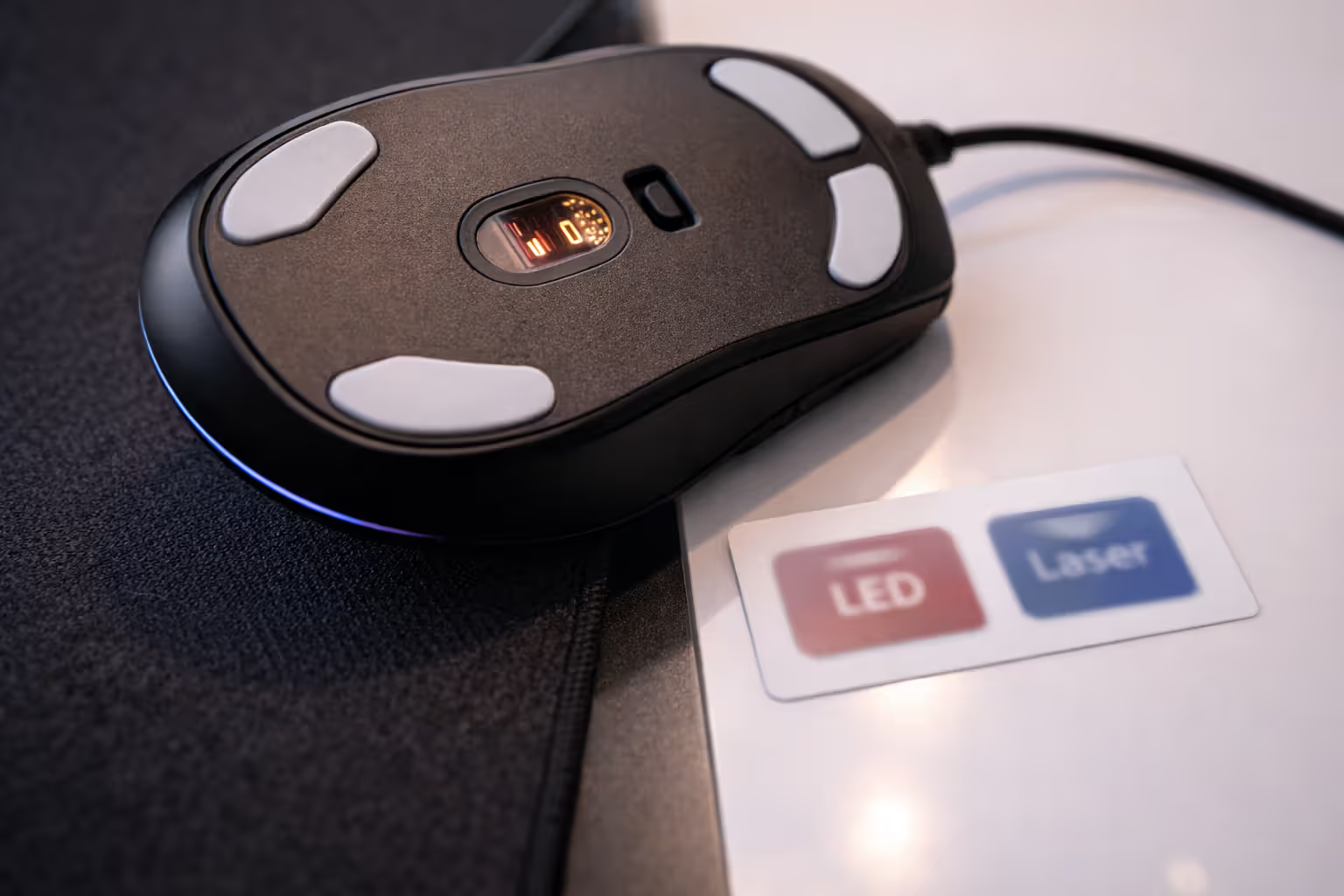
The sensor determines tracking accuracy more than any other component. Optical sensors use LED light and a camera to photograph the surface beneath the mouse thousands of times per second, calculating movement by comparing images. Laser sensors use infrared laser diodes instead of LEDs, allowing them to track on more surfaces but introducing accuracy trade-offs.
Optical sensors only track what they can "see" with visible or near-infrared light. This makes them surface-dependent—they work flawlessly on cloth mousepads and most hard pads but struggle on glass or highly reflective surfaces. The benefit is consistent, predictable tracking with zero acceleration (where the cursor moves farther when you move the mouse faster, even though you moved it the same distance).
Laser sensors penetrate deeper into the surface material, picking up microscopic imperfections and texture variations. This lets them track on glass, glossy wood, and other surfaces where optical sensors fail. However, this sensitivity to surface texture causes jitter—small unintended cursor movements when the mouse is stationary—and inconsistent tracking speeds across different materials.
Author: Brandon Hayes;
Source: quantumcatanimation.com
| Feature | Optical | Laser |
| Tracking accuracy | Highly consistent, zero acceleration | Variable depending on surface texture |
| Surface compatibility | Cloth, hard pads, matte surfaces | Works on glass, glossy, and irregular surfaces |
| Max DPI range | 3,200–30,000 DPI | 5,600–25,600 DPI |
| Power consumption | Lower (LED-based) | Higher (laser diode) |
| Price range | $30–$150 | $40–$120 |
| Best for | Competitive gaming, consistent performance | Multi-surface use, travel, casual gaming |
Modern competitive gaming mice almost exclusively use optical sensors. The PixArt 3370, 3389, and newer Hero sensors (used by Logitech) and the Razer Focus+ sensors represent the current standard. These track accurately up to 5+ meters per second and handle 50G acceleration without spin-outs.
Laser sensors still appear in some wireless office mice and older gaming models, but sensor technology has progressed to the point where optical sensors now match or exceed laser sensors in maximum DPI while maintaining better accuracy.
The Three Mouse Grip Styles and Which Mice Fit Each
Your grip style determines which mouse shapes will feel natural and which will cause hand fatigue or force awkward finger positions. Most players naturally fall into one of three grips, though hybrid styles exist.
Palm Grip
Your entire hand rests on the mouse with your palm contacting the back hump. Fingers lie relatively flat across the buttons. This grip provides the most stability and works well for low-sensitivity players who make large arm movements.
Palm grip requires a mouse with a tall back hump that fills your palm and a length that extends to the base of your fingers. Short mice force your palm to hover, defeating the purpose of the grip. Hand size matters significantly—a mouse perfect for an 18cm hand will feel cramped for a 20cm hand.
Recommended shapes: ergonomic designs with pronounced curves, mice 120mm+ in length for medium to large hands. The Razer DeathAdder, Zowie EC series, and Logitech G403 exemplify palm-grip-friendly shapes.
Claw Grip
Your palm rests on the back of the mouse, but your fingers arch upward, contacting the buttons only with your fingertips. This creates a claw-like hand shape. The grip allows faster finger movement for clicking while maintaining some palm stability.
Claw grip works with shorter mice (100–115mm) because you don't need length to support your fingers. The back hump should be moderate—too tall and it forces your palm up, too flat and you lose the palm contact that stabilizes the mouse.
This grip style suits medium-sensitivity players who mix wrist and finger movements. It's popular in MOBA and MMO genres where you need quick button access but also precise cursor control.
Recommended shapes: medium-length mice with moderate humps, ambidextrous or slightly ergonomic designs. The Vaxee XE, Logitech G Pro X Superlight, and Razer Viper represent good claw grip options.
Fingertip Grip
Only your fingertips and the bottom of your palm (near the wrist) contact the mouse. The middle of your palm hovers above the mouse entirely. This grip maximizes finger control and allows the fastest small adjustments but provides the least stability.
Fingertip grip demands lightweight mice under 70 grams—heavier mice cause finger fatigue quickly when you're supporting the weight with just your fingertips. Length should be short (95–110mm) so the mouse doesn't extend past your fingers. The back hump should be minimal or nonexistent.
High-sensitivity players favor fingertip grip because it enables rapid micro-corrections using only finger muscles. The trade-off is less stability for long, smooth tracking movements.
Recommended shapes: short, flat, lightweight mice. The Finalmouse Ultralight 2, Cooler Master MM710, and Zaunkoenig M2K cater to fingertip users.
Hand size creates exceptions to all these guidelines. Measure from the base of your palm to the tip of your middle finger. Under 17cm is small, 17–19cm is medium, 19–21cm is large, and over 21cm is extra-large. A mouse marketed for palm grip might work for claw grip if you have large hands, and vice versa for small hands.
7 Mouse Setup Mistakes FPS Players Make
Mistake 1: Matching DPI to your monitor resolution. Some players think 1440p monitors need higher DPI than 1080p monitors. DPI and resolution are independent. Your sensitivity should feel the same regardless of resolution because you're moving the same physical distance on your mousepad.
Mistake 2: Enabling mouse acceleration in Windows. The "Enhance pointer precision" setting in Windows applies acceleration that makes the same physical movement produce different cursor distances depending on speed. Disable this in Mouse Properties > Pointer Options. This setting overrides in-game sensitivity and makes muscle memory impossible to develop.
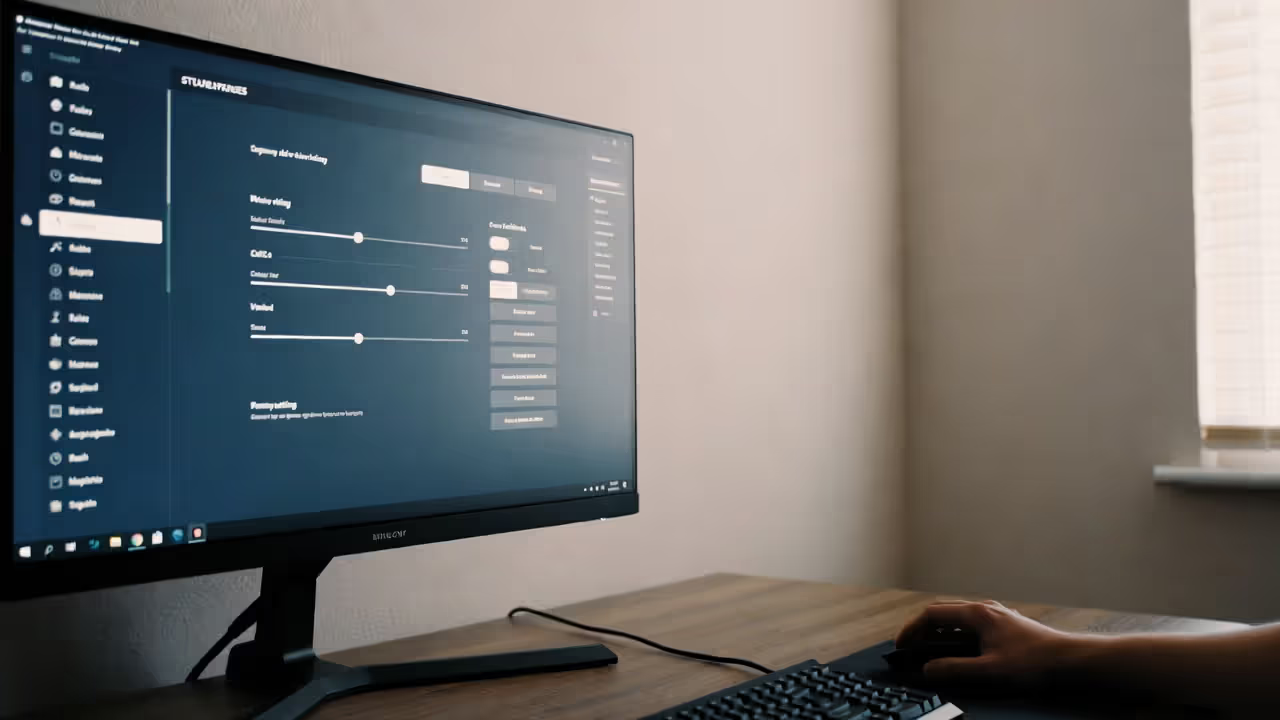
Mistake 3: Ignoring polling rate. Most gaming mice default to 1000 Hz, but some ship at 500 Hz or 125 Hz. Check your mouse software. The difference between 125 Hz and 1000 Hz is 7 milliseconds of extra input delay—enough to lose fights where reaction time matters.
Author: Brandon Hayes;
Source: quantumcatanimation.com
Mistake 4: Using the wrong mousepad surface. A control pad (cloth with high friction) paired with extremely low sensitivity makes large movements exhausting. A speed pad (hard plastic or coated cloth) with high sensitivity makes small adjustments twitchy. Match your pad to your sensitivity: low sensitivity needs speed pads, high sensitivity benefits from control pads.
Mistake 5: Forcing a grip style because a pro uses it. If palm grip feels natural but you try switching to fingertip because your favorite streamer uses it, you'll perform worse. Grip style should feel effortless. If you're thinking about your grip during a match, it's wrong for you.
Mistake 6: Believing heavier mice improve accuracy. Some players add weights to their mice thinking mass reduces shakiness. Physics works against you—heavier mice require more force to start moving and more force to stop, making precise adjustments harder. Modern competitive mice weigh 60–75 grams for a reason.
Mistake 7: Never updating firmware or adjusting lift-off distance. Mouse manufacturers release firmware updates that improve sensor performance, fix bugs, and add features. Lift-off distance (how high you can lift the mouse before it stops tracking) should be as low as possible—high lift-off distance causes unintended cursor movement when you reposition the mouse.
People obsess over finding the perfect mouse, but they ignore the setup. I've seen players with $150 mice who still have Windows acceleration enabled and their polling rate at 500 Hz. The mouse doesn't matter if the settings sabotage it. Get a good optical sensor, find your grip, then spend time on the settings and mousepad pairing.
— Brandon "aceu" Winn, former professional Apex Legends player and content creator
How to Optimize Your Gaming Mouse for FPS Games
Start with your operating system. Windows sensitivity should stay at 6/11 (the default middle position) with "Enhance pointer precision" disabled. This creates a 1:1 relationship between your mouse movement and cursor movement. Some competitive players use MarkC's mouse fix to eliminate any remaining acceleration on older Windows versions, though Windows 10 and 11 handle raw input better than previous versions.
Set your polling rate to 1000 Hz in your mouse software. The performance difference between 500 Hz and 1000 Hz is measurable but small—about 1 millisecond. The difference between 125 Hz and 1000 Hz is significant: 7 milliseconds of input delay. Every millisecond matters in competitive shooters where average human reaction time is 150–200 milliseconds.
Adjust lift-off distance to the minimum your mousepad allows. Open your mouse software and look for LOD calibration. Lower LOD prevents the sensor from tracking when you lift the mouse to reposition, eliminating the frustrating experience of your crosshair moving while the mouse is in the air. Some mice let you calibrate to your specific mousepad surface for optimal performance.
Disable angle snapping and surface calibration if your mouse offers these features. Angle snapping "corrects" your mouse movement to create straighter lines, which sounds helpful but actually prevents you from making the exact movements you intend. Surface calibration is useful only if you frequently switch mousepads.
Map your mouse buttons for quick access to essential actions. Side buttons should handle functions you need during fights—push-to-talk, melee, or ability keys. Avoid mapping primary fire or aim-down-sights to side buttons; these actions need the stability and speed of your index and middle fingers.
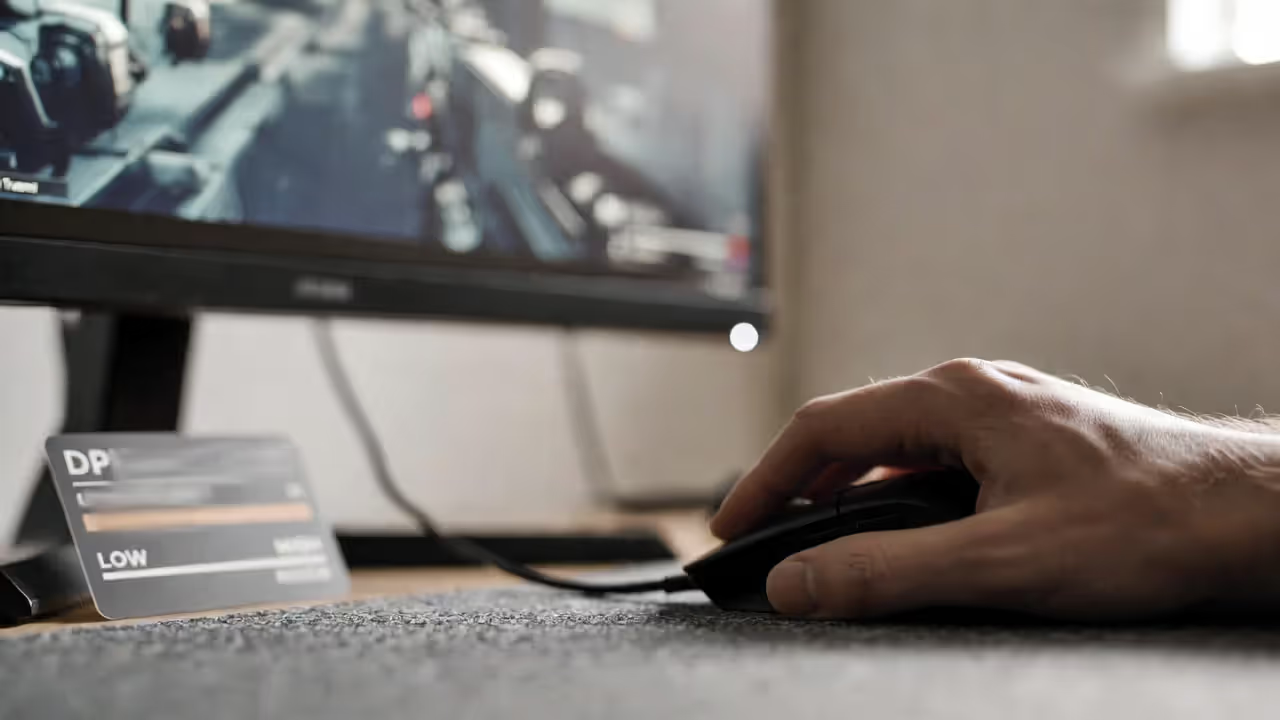
Check your DPI indicator lights and create profiles for different games if needed. Most mice let you switch DPI on the fly with a button. Having one profile for desktop use (higher DPI for less arm movement) and one for gaming (lower DPI for precision) makes sense. Within games, stick to one sensitivity to build muscle memory.
Update your mouse firmware through the manufacturer's software. Logitech G Hub, Razer Synapse, and similar programs notify you of updates. These updates often improve sensor accuracy, fix tracking bugs, or reduce click latency. Some updates have reduced click latency by 2–5 milliseconds, which is meaningful at competitive levels.
Consider your cable management for wired mice. A mouse bungee holds the cable above your desk, preventing drag and snag. This costs $10–20 and makes a wired mouse feel nearly wireless. If you're using a wireless mouse, keep the USB receiver close to the mouse (within 12 inches) to minimize signal interference and maintain the lowest possible latency.
Frequently Asked Questions About Gaming Mice
The best gaming mouse combines a sensor that tracks accurately at your preferred DPI range, a shape that matches your grip style and hand size, and a weight that lets you move quickly without fatigue. Ignore marketing claims about extreme DPI numbers and focus on the fundamentals: optical sensor, 1000 Hz polling rate, quality switches, and a shape that feels natural after 30 minutes of use.
Try before you buy when possible. Many electronics retailers have display models. Hold the mouse, test the button resistance, and check if the shape fits your grip. If buying online, check the return policy—some companies offer 30-day returns specifically so you can test fit and feel.
Your mousepad matters as much as the mouse itself. A quality cloth pad provides consistent tracking and costs $20–40. Hard pads offer less friction for low-sensitivity players but show wear faster. Match your pad size to your sensitivity: low sensitivity needs a 450mm+ wide pad, high sensitivity works fine with 300–350mm.
Remember that expensive doesn't always mean better for your specific needs. A $50 mouse with the right shape for your grip will outperform a $150 flagship with the wrong shape. Start with the grip style and hand size requirements, then filter for optical sensors and reliable brands, and finally consider budget.
Once you've found the right mouse and dialed in your settings, commit to it for at least a month. Switching mice frequently prevents muscle memory development. The goal is to stop thinking about your equipment and focus entirely on the game.